
Hostimor | e-Logo
Formalise your WISECP invoices as e-Invoice (e-Fatura) or e-Archive (e-Arşiv) documents through the e-Logo private integrator. 1.2.0 is published on the WISECP Marketplace.
Version and distribution
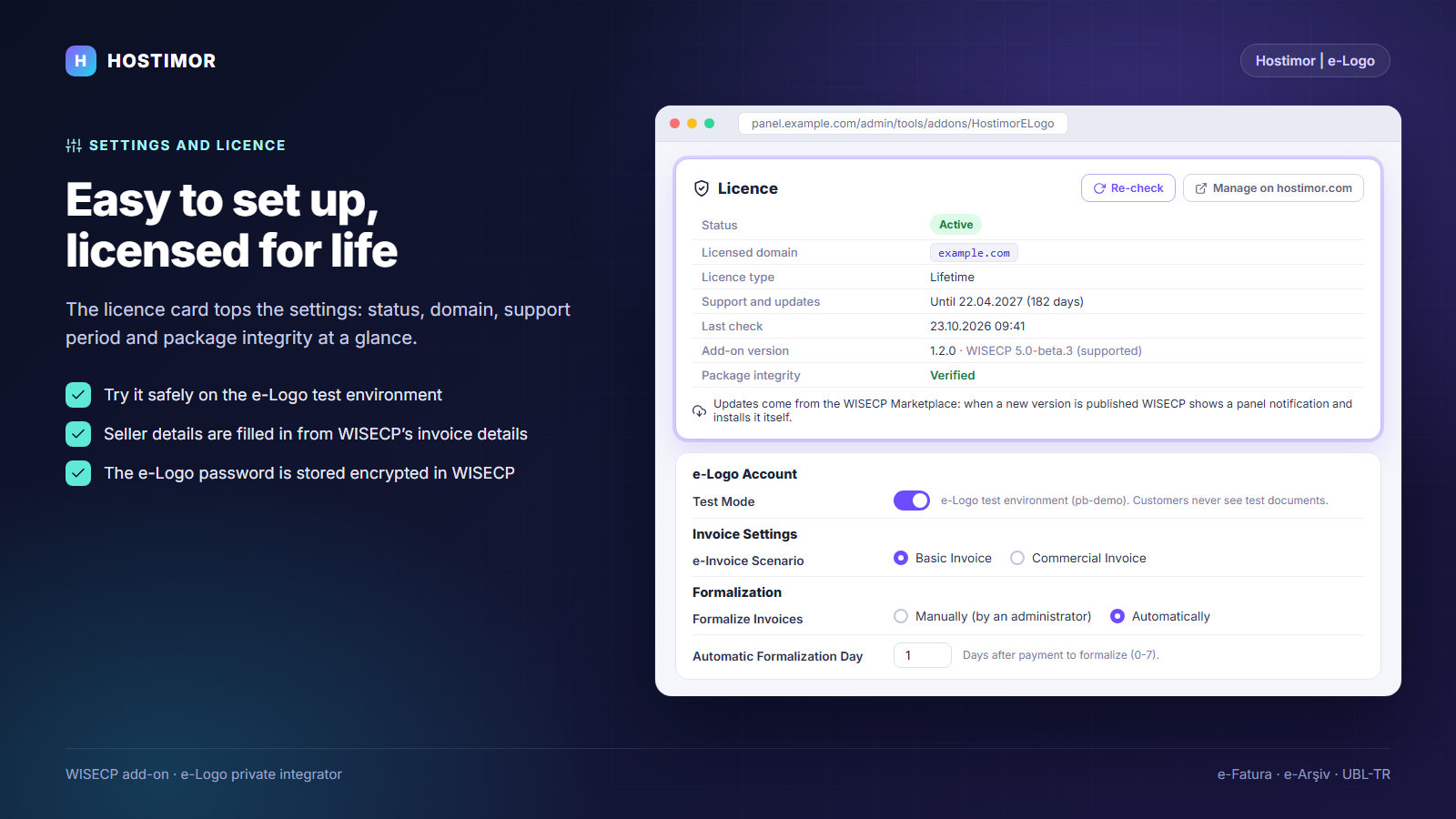
Hostimor | e-Logo 1.2.0 was published on the WISECP Marketplace on 24 October 2026. The installation package and later updates come from the Marketplace. The licence is free and is obtained from hostimor.com.
Version 1.2.0: tested on WISECP 5.0-beta.3 and PHP 8.2. The minimum WISECP version is 5.0-beta.2; PHP 8.1 or later is required. The add-on makes no changes to the WISECP core; it does all its work through WISECP’s own hooks and task queue.
What does it offer?
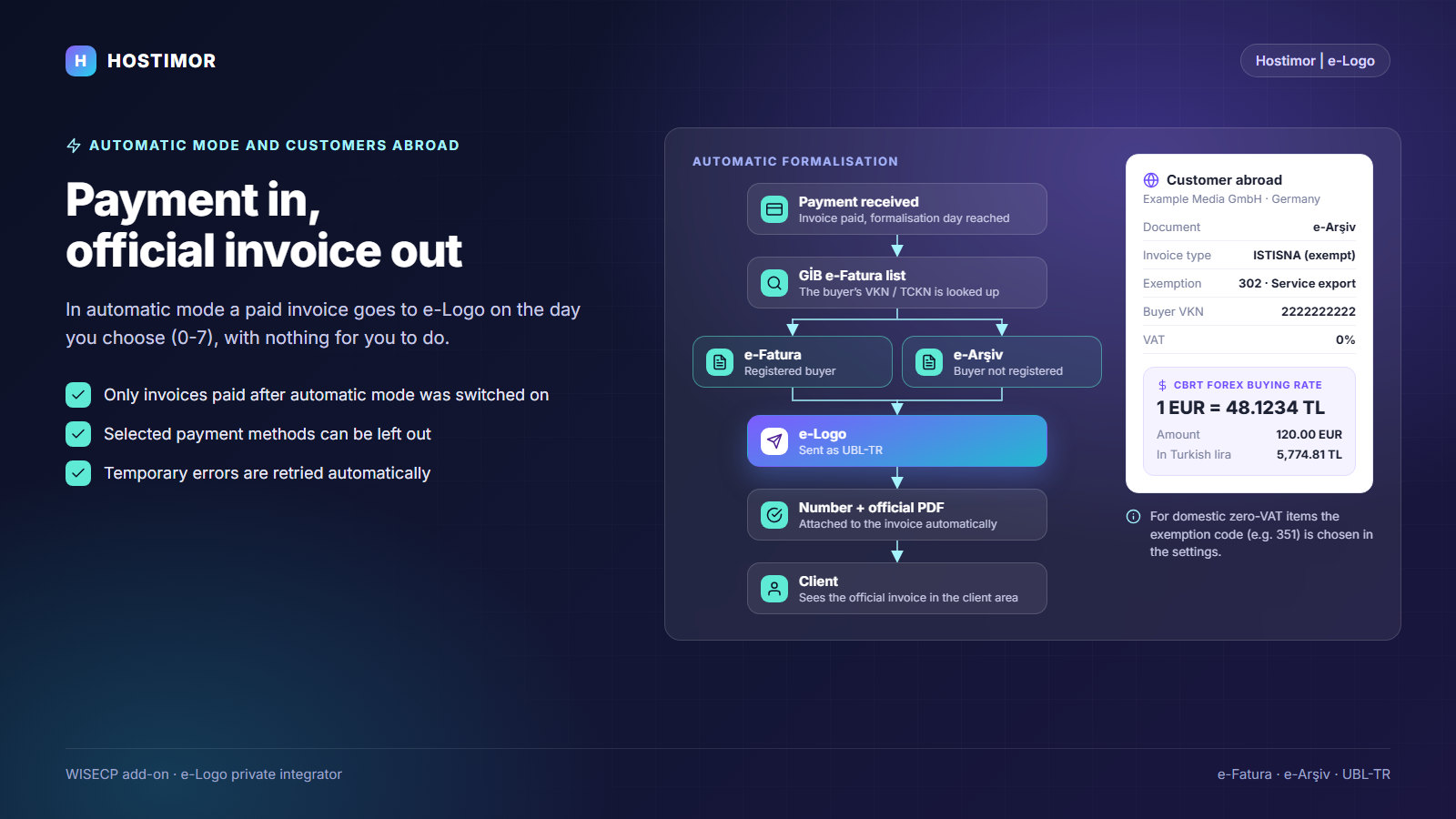
- The buyer’s tax number is looked up in the e-Invoice registry of the Revenue Administration (GİB): if it is registered, an e-Invoice (Basic or Commercial scenario) is issued, otherwise an e-Archive invoice.
- Manual formalisation (“Official” when editing an invoice) or automatic formalisation 0–7 days after payment.
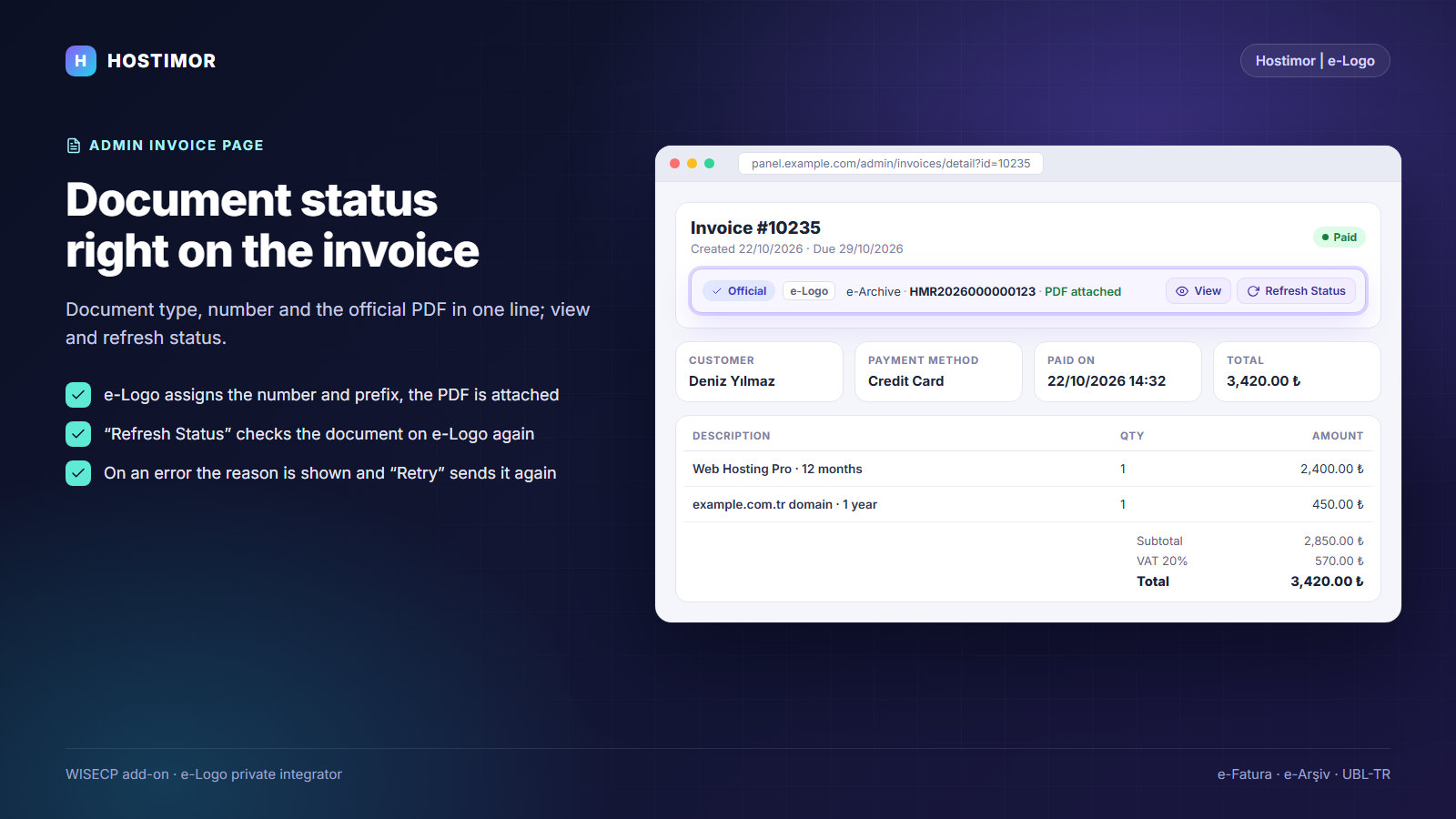
- e-Logo assigns the invoice number and prefix; the official PDF is attached to the invoice automatically.
- e-Archive invoices for customers abroad under the service export exemption (302); on foreign-currency invoices, the CBRT foreign exchange buying rate and TL equivalents.
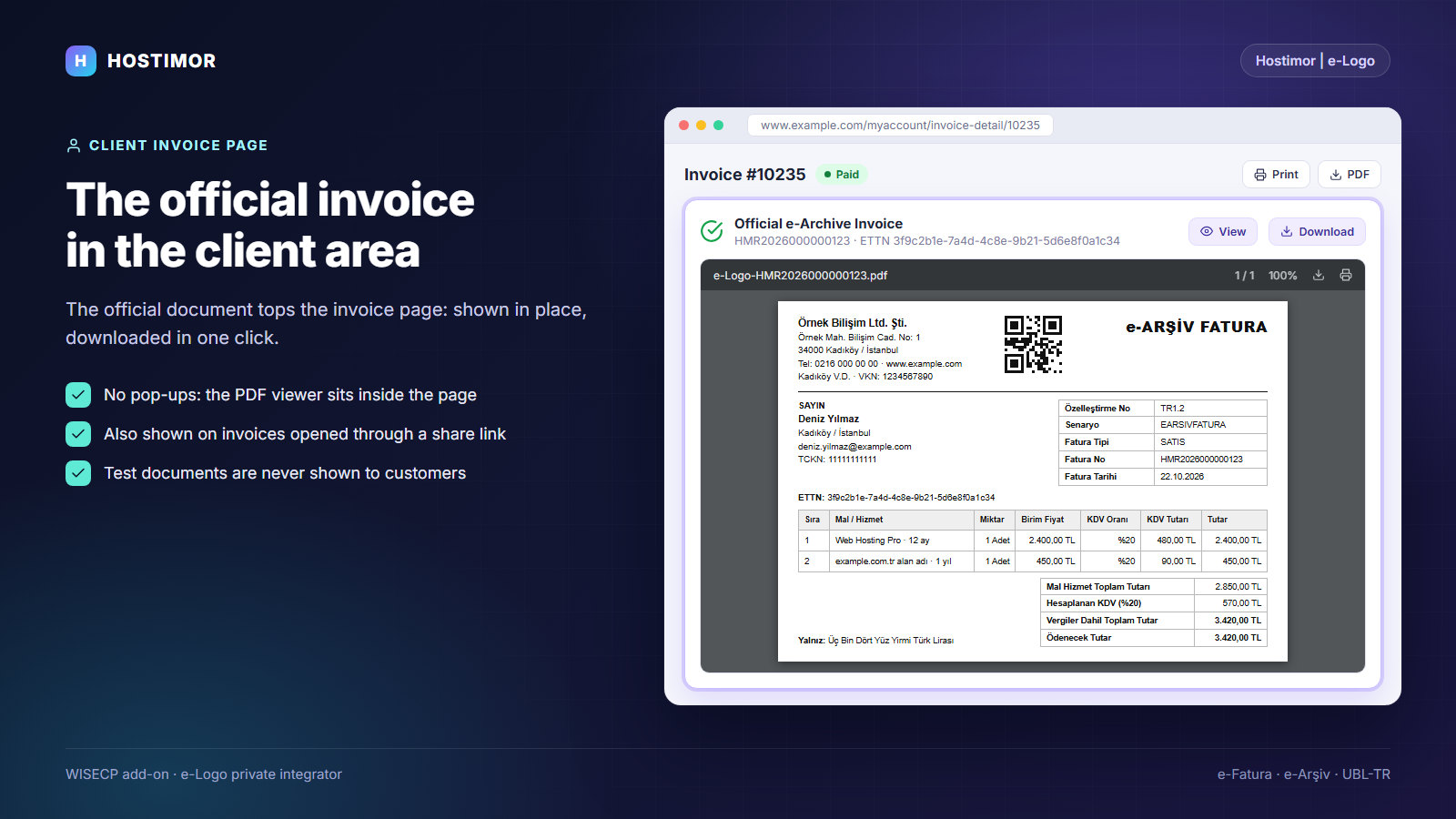
- On the admin invoice page, document status, type, number and official PDF on a single line; on the client invoice page, the official document is displayed within the page.
- On refunds and cancellations, the e-Archive document is cancelled on e-Logo; for an e-Invoice, administrators are told what to do.
- Background sending, automatic retries and administrator notifications with a “Retry” button.
- The document ID (ETTN) is stored before sending: an invoice is never issued twice.
- Test mode on the e-Logo test environment (pb-demo); test documents are not shown to customers.
How does it work?
- Formalisation starts. An administrator selects “Official” on the invoice, or in automatic mode the formalisation day arrives.
- The invoice is queued. It enters the WISECP task queue; the page does not wait.
- The document type is determined. An e-Invoice if the buyer is registered for e-Invoice with GİB, otherwise an e-Archive invoice; for customers abroad, always an e-Archive invoice of type exemption (İSTİSNA).
- It is sent. The invoice is built as UBL-TR and sent to e-Logo; e-Logo assigns the number.
- It is tracked. The document status is monitored; once the document is final, the official PDF is attached to the invoice and appears on the customer’s invoice.
If a step fails, the reason is written on the invoice card and administrators are notified; once you have fixed it, “Retry” sends the invoice again.
Where to start
Installation and initial settings
Licence, e-Logo account, seller details and test mode.
Open guide →02 · USAGEFormalisation and screens
Manual and automatic mode, document types, refunds and cancellations.
Open guide →03 · LICENCELicence and updates
Licence card, support period and Marketplace updates.
Open guide →04 · TROUBLESHOOTINGTroubleshooting
Unsent invoices, design, PDF and connection.
Open guide →Screens
The images were prepared with the 1.2.0 interface and sample data; they contain no real customer or e-Logo account details.