
AI: API, models and limits
Choose a provider; save the key and manage company knowledge and usage limits.
Customer account access
The AI settings have three separate access options: services, orders and support history. They are off on a new installation. When enabled, only the records of the signed-in active account that are relevant to the question are queried; no other account can be accessed by typing a customer number, name or email.
The assistant can use the service package, its status, the renewal date and the number of days remaining. Lifetime services and services with no known date are handled separately. The number, date and status of orders are read; payment details are not retrieved. The relevant, customer-visible recent correspondence of previous support tickets is processed by the selected provider, with confidential information removed. Administrator notes, attachments and access credentials are not retrieved.
On sub-accounts, the service, domain and support viewing permissions still apply. Order history is available only to the account owner. When the active account or the sub-account permissions change, the chat’s access is detached. Queries never make payments, renewals, orders or service changes. If data cannot be retrieved, the account is not assumed to be empty.
An authorised operator can use the Account overview → View account section in the chat on desktop and mobile. The lists are limited to recent or relevant records; the total count is shown separately. Account details are not stored in the public catalogue cache.
Support tickets created by the assistant
On the AI page, turn on Allow the assistant to create customer support tickets and choose the default WISECP support department. It is off on a new installation. Once the details needed for a signed-in active customer’s unresolved issue or explicit request for a ticket have been collected, the ticket is created in the customer’s account. If a service is to be selected, ownership is verified; on sub-accounts, the native support permission still applies.
Technical, order, billing or sales topics are routed to the matching native department; if no match is found, the default department is used. Simple information questions, resolved issues and guest conversations do not open a ticket automatically. One ticket is created per conversation; repeated replies do not create new records. Later messages point to the existing ticket; they are not added to the ticket correspondence automatically.
The customer is shown only the real ticket number and tracking link taken from a successful record. Notifications are queued using the WISECP support notification settings, the department recipients and the existing email / SMS provider; being queued is not a delivery guarantee. If account restrictions or required custom fields block the automatic process, the customer is directed to the native support form.
Choosing a provider and keys
On the AI page, choose OpenAI / GPT, Google Gemini or Anthropic / Claude. Only the API field of the selected provider is shown. Each provider’s key is stored separately and encrypted; changing the selection does not delete the other keys. Saving the masked field without changing it keeps the key; clearing it and saving deletes the selected key. API calls are made from the server.
Conversation context and needs assessment
The latest messages and a cumulative summary of the same conversation are assessed together. Details from older messages about the intended use, operating system, number of users, budget and billing period are kept within a limited context. The customer’s latest correction replaces an earlier preference; a need that is already known should not be asked about again.
Package recommendations are based on verified product features and the customer’s needs. The budget limit is respected; an annual price is taken only from the amount listed in the catalogue for that period. User capacity or performance guarantees are never made up. Because AI replies can vary, an operator can take over the conversation.
Getting an OpenAI / GPT API key
- On the OpenAI API Keys page, choose a project for the add-on and create a new secret key.
- If you use a restricted key, give it Write permission for the Responses API.
- With OpenAI / GPT selected, save the key in its field. Use a model that supports JSON schema responses and is available to your account; a starting example is
gpt-4o-mini. - On the Billing page, check your balance and usage limits.
A ChatGPT subscription is not API credit. Creating a key does not guarantee any free usage credit. Current access and pricing are set in your provider account.
Getting a Google Gemini API key
- On the Google AI Studio → API Keys page, create a new key; select the correct Google Cloud project.
- If the project is not listed, import it from the Projects section and check your permissions to create keys.
- With Google Gemini selected, save the key; enter the ID of a model that is available to your account and supports structured output.
- Check the usage and rate limits in AI Studio. The free quota depends on the model, project and region; if needed, enable billing for the project yourself.
Getting an Anthropic / Claude API key
- On the Claude Console → API Keys page, select the organisation and workspace.
- Create a key dedicated to the add-on and restrict it to its own workspace. An Admin API key is not needed for chat.
- With Anthropic / Claude selected, save the key. Choose a model that supports JSON schema output and is available to your account; a starting example is
claude-sonnet-4-6. - On the Console → Billing page, check your credit and its expiry date.
Eligible subscriptions may include credit; check your account’s eligibility and the claim and renewal conditions in the provider’s current terms. The add-on licence does not include API credit.
Company knowledge and package catalogue
In the “Company knowledge” field, describe your support processes, service scope and business policies. Published WISECP products, period prices, features, domain prices and stock status are pulled in automatically; the catalogue is cached for at most 60 seconds. Hidden module options, costs and customer-specific prices are not passed on.
A period price is the total for that period; an annual price must not be presented as if it were a monthly one. Tax, setup fees, selected options and the final total are confirmed on the order screen. Products that are out of stock are not recommended for purchase; the assistant never claims that a domain is actually available.
Hosting, server, domain, DNS and SSL questions are in scope. The assistant does not do general research outside your business; it should not answer unrelated questions such as phone prices. For unknown details, it hands over to an operator or switches to the support record flow.
Reading usage and limits
The panel shows the add-on’s daily / per-minute allowance and the reply limit per conversation. The recommended limit per conversation is 40 replies; it can be set within 1–100. When the limit is reached, the visitor is told that the conversation has been saved and when the team will reply. If the limit is raised later, only a chat that was stopped for this reason and has not yet been taken by an operator continues with the same history. Failed and over-limit attempts may also count towards the counters. The add-on’s daily counter resets at 00:00 UTC (03:00 Turkey time).
If OpenAI and Claude report limit headers in a normal API response, the latest request/token limits are shown with a timestamp. This snapshot may cover the whole account, and usage by other applications also changes it. A remaining value whose reset time has passed or is unknown is not treated as current. The Refresh data button reads the last saved status; it does not send a paid test request.
If account credit cannot be retrieved with a normal chat key, an explanation and a Billing link are shown instead of the balance. Usage cost is not the same as credit balance; an unknown value is never shown as zero. Gemini project quotas are verified in AI Studio.
Encrypted support messages and the account overview
When support history is enabled, only customer-visible and unencrypted replies can be used. Support messages stored encrypted are never decrypted, and their content is excluded entirely, regardless of keywords. The same rule applies to the administrator account overview. Private administrator notes, credential fields and payment details are out of scope.
For general support tickets with no service selected, compatibility with WISECP beta.2 is maintained. On newer versions, the required service selection check applies. If a custom field or a native security rule blocks the ticket, the assistant does not claim that it created a record successfully.
AI settings screen
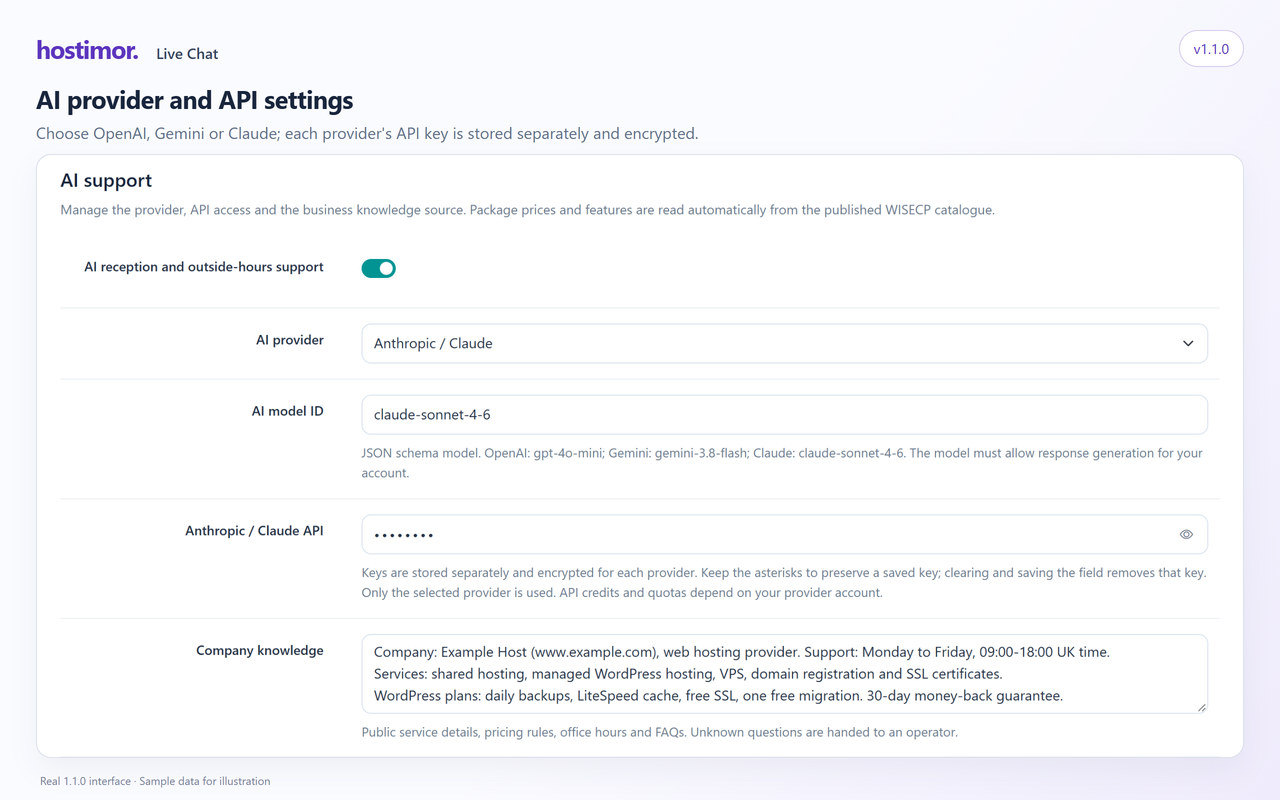
Only the API field of the selected provider is shown. Keys are stored separately and encrypted. When the provider reports limits, the request/token values of the latest response can be monitored; these values are not a credit balance. Verify your credit balance and its expiry on the provider’s billing screen.
The chat screens are in the usage guide.
Limits of account access
A guest chat is not transferred to another account automatically on registration or sign-in. When the session changes, the old chat and draft are cleared. The assistant continues in a separate conversation with the permitted records of the signed-in account. This change is included in the released 1.0.15 package.
Enable the service, order and support history permissions only for the scope you will use. The assistant reads only the authorised account of the verified session. If a number could refer to both an order and a service, the relevant record types are assessed separately; a record whose data cannot be loaded is not treated as non-existent.
Encrypted support replies are never decrypted or sent to the provider; they are not included in the administrator account overview either. Removing credentials that appear in plain text is an additional safeguard and is not guaranteed to recognise every way of writing them. Do not put passwords, tokens or private keys in an open chat or in the Company knowledge field.
This assistant can review service records; it must not talk as if it had connected to a server, carried out a technical operation, restarted something or made a payment. If a real technical operation is needed, the relevant service is verified and a native support ticket is opened. If the record fails, the assistant does not say that a ticket was created.