
Chats, files and appearance
Welcome visitors; take the conversation, reply and follow its history.
Conversation workspace
Choose waiting, assistant-handled, ongoing and past conversations from the top section. You can search by name, email or message. When an operator takes a conversation, the automatic replies stop. Returning a conversation to the queue (to hand it over again) and ending the chat (which archives it) are different actions.
Your online and notification sound preferences are saved to your administrator account. Minimising the window does not end the customer’s conversation.
Ending, deleting and restoring
1.1.0 was released on 24 October 2026. The approved encrypted installation package and updates are provided through the WISECP Marketplace. Licences are on sale through Hostimor; downloads need an active domain licence and update entitlement.
- Open a waiting or AI conversation. To end it without taking it over, use the End chat button and complete the confirmation. Another operator’s active conversation is ended by that operator.
- In a completed conversation, press Delete. Once you confirm, the conversation moves to the Deleted section and is no longer shown in the normal lists.
- To bring a conversation back, open it from the Deleted tab and press Restore. The conversation returns to the history as completed; it does not affect any other conversation you have in progress.
Deletion can be undone. Messages, file attachments and support ticket receipts are kept. Administrators can review the history and attachments of a deleted conversation; the customer’s access to it is closed.
Unread messages and tab counts
1.0.15: When you open a conversation and read its messages in the visible area, the unread message badge is cleared. You do not need to take over the conversation; the same rule applies to waiting, AI and completed chats. When a new message arrives, the badge goes up again.
The numbers on the Waiting, AI assistant, Ongoing, History and Deleted tabs show the total number of conversations. Reading a message does not remove the conversation from these sections, so the tab totals are not expected to drop to zero.
Mobile workspace and conversation summary
The Go to workspace button is to the right of the chat header. Pressing it aligns the chat to the available screen area; you can return to the normal view, or go to the workspace again after scrolling the page manually.
On desktop and mobile, the AI conversation summary is collapsed by default. Click or tap its heading to expand or collapse the details; your choice is kept while the messages of the same conversation refresh. When the summary or the account details are open, room is kept for the message box; long details scroll within their own areas. On mobile, when the text field has focus, the extra details collapse to make room for the message.
The live chat button sits above the back-to-top button, with a gap between them. While the chat window is open, the back-to-top button does not cover the message area.
Visitor details and drafts
Member details come from the customer account; the phone number is shown if there is one. Guests are asked for their name, email and phone. The visitor’s current page and page title appear in the panel. The draft being typed can be shown to the operator live; unsent text is not saved in the chat archive and is deleted when it expires. Do not ask for confidential information in the chat.
Keeping guest and customer conversations apart
1.0.15: An old guest cookie does not authorise linking that conversation to an account that signs in or registers. The customer continues the existing conversation that belongs to their verified account, or starts a new one. When the session or account changes, the previous chat and the unsent draft are cleared.
Guest history is not merged with customer history automatically. When the same customer account signs in from another device, that account’s conversation can be continued; the messages and files of other accounts cannot be accessed.
Files and preview
JPG, PNG, WebP and PDF files can be sent. A limit of 2 MB per file and 20 MB in total per conversation applies. Files are not accepted on their extension alone; the content type is verified as well. Images and PDFs can be previewed in the chat; downloading is a separate action. Only the visitor with access to the conversation and an authorised operator can reach the files.
Appearance settings
On the Appearance page, choose the title, welcome message and chat icon. The “Use site brand colors” option uses the primary / secondary colours from WISECP Theme → Site Colors. If you choose custom colours, the colour picker and the HEX field are updated together. The message text colour is chosen for readability; the light / dark appearance adapts to the site theme.
1.1.0 screenshots
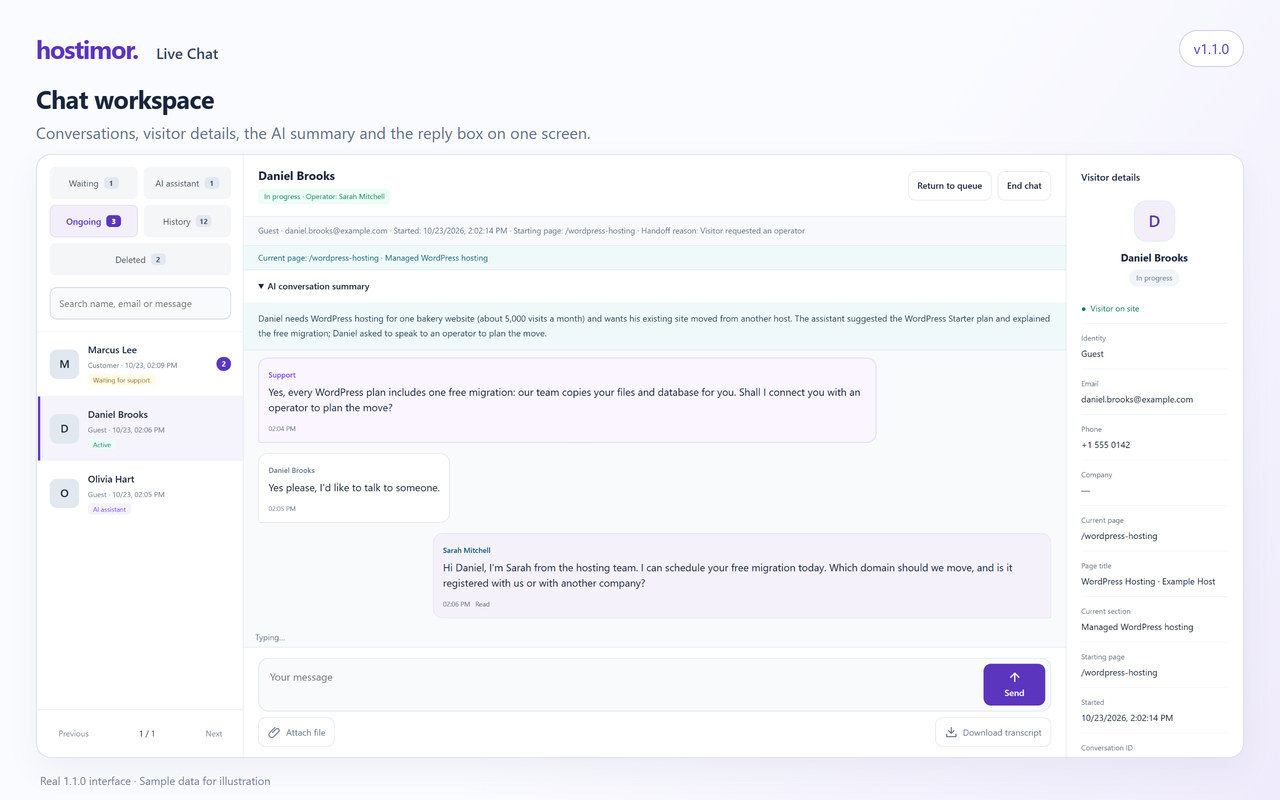
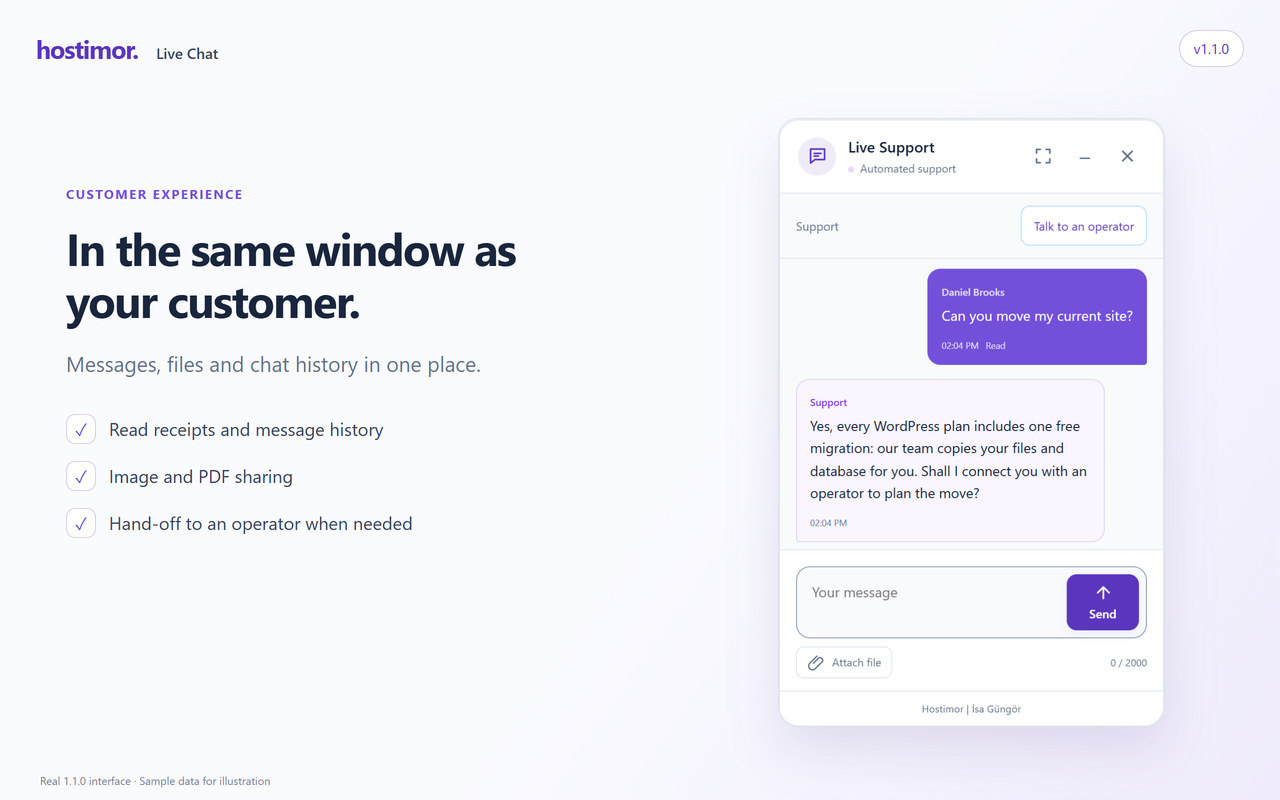
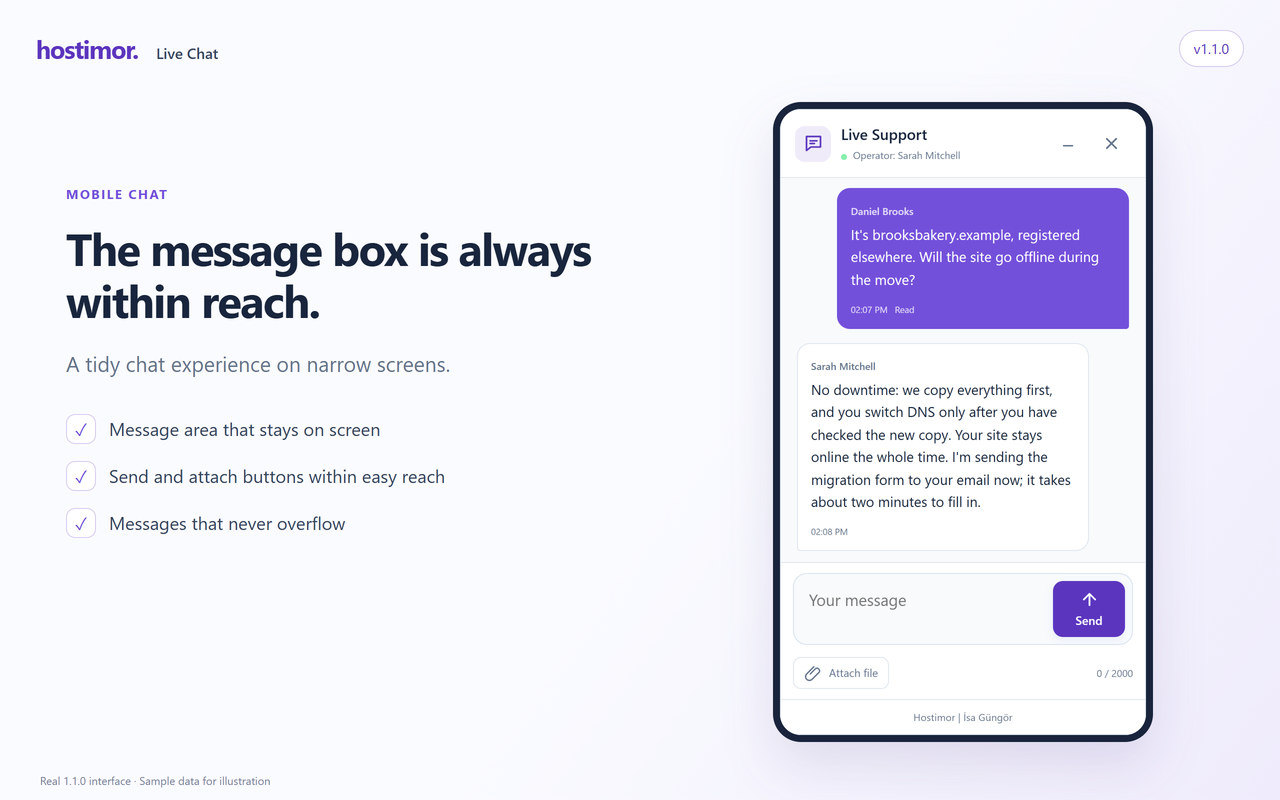
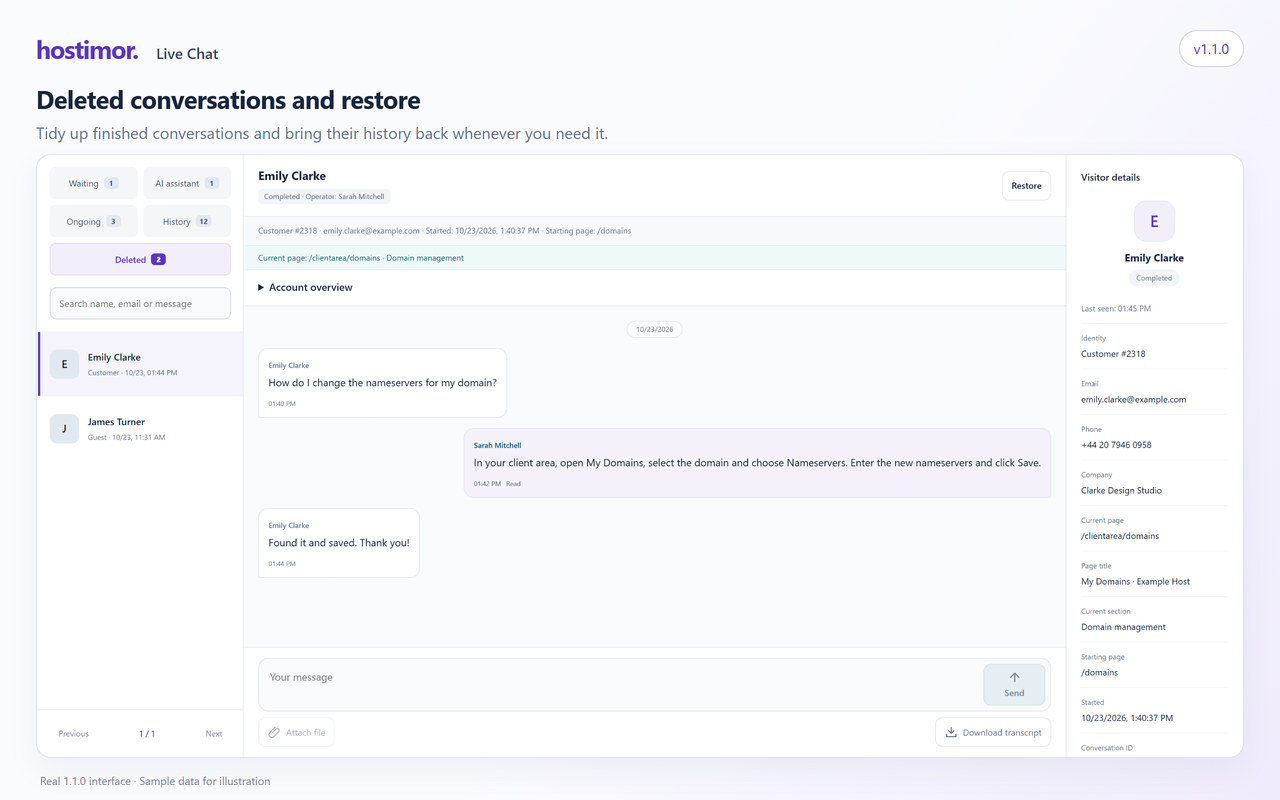
The images were taken with the real chat interface of version 1.1.0 in a separate demo environment using sample data. They contain no real customer details or API keys. The AI replies are examples; no paid provider calls were made for these images.