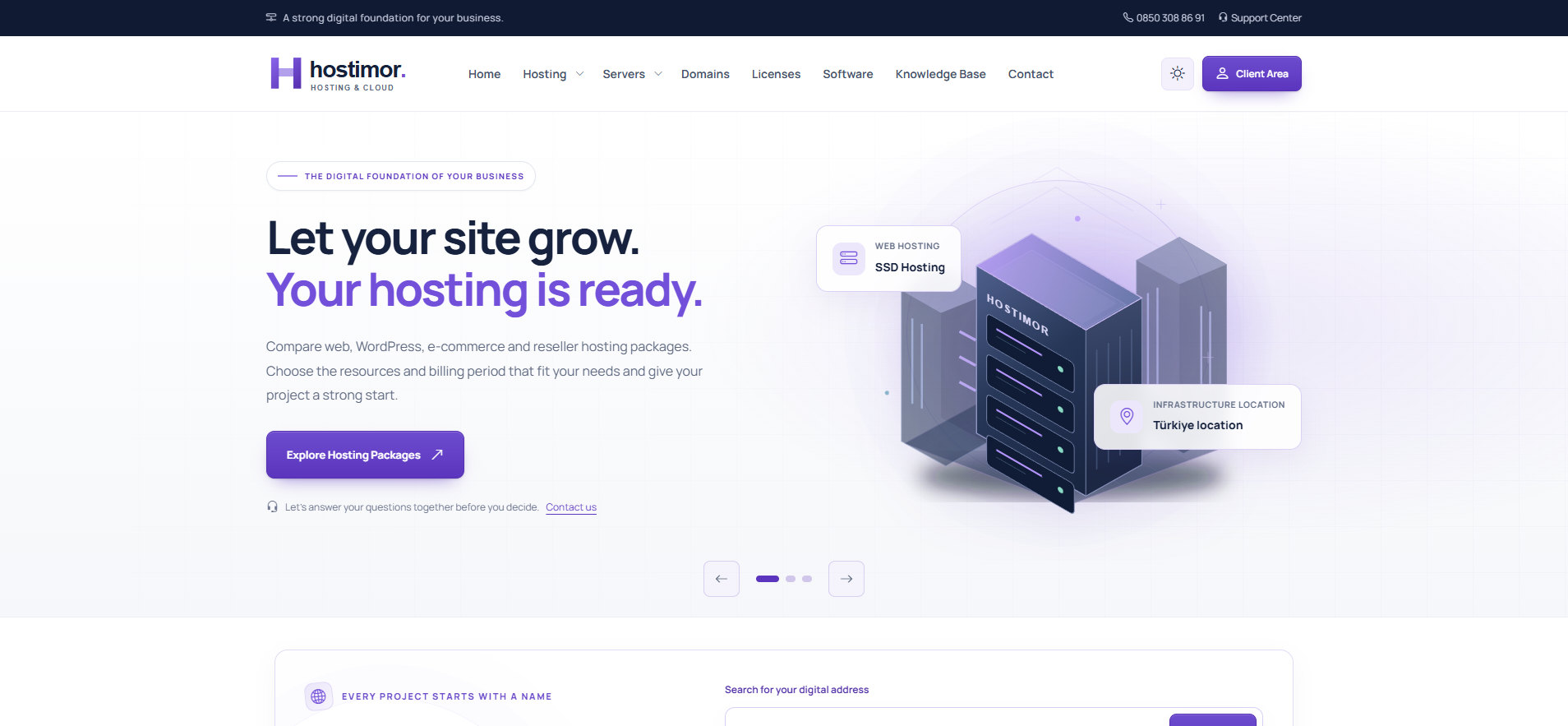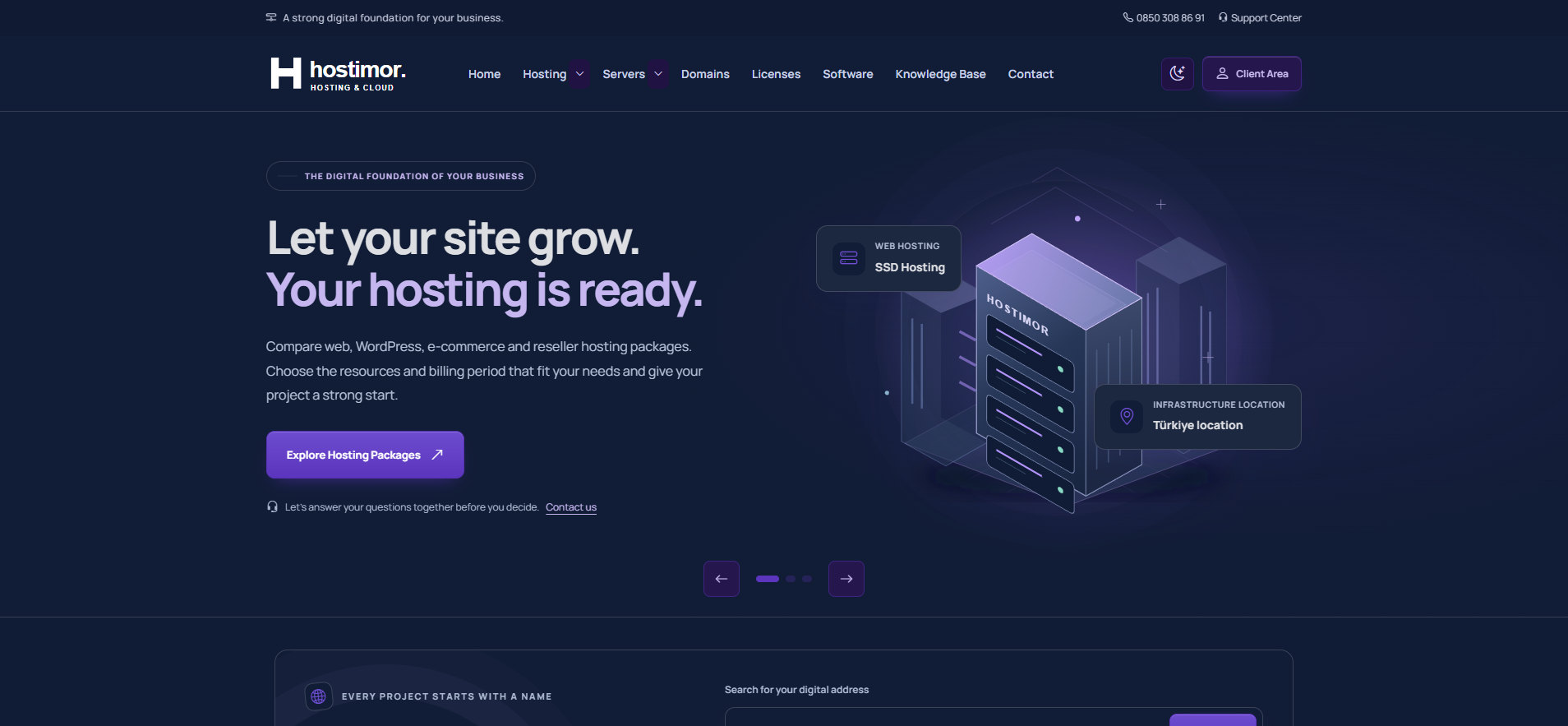
Light, dark and automatic appearance
Create a consistent appearance across the website, the sign-in screens and the client area.
Which versions support it?
The light, dark and automatic appearance options are available in Hostimor 1.3.14 and later versions published on the WISECP Marketplace; the current version is 1.3.17. 1.3.16 also adds six ready-made colour combinations. The website, sign-in/registration and client area use a shared appearance preference.
1.3.17 improves the dark appearance in the cart, checkout, invoices and client area; in the light appearance, helper texts, status labels and soft buttons are brought up to AA contrast.
Choose the default appearance
- Open Settings → Theme/Customization → Manage Theme → Hostimor → Settings. In 1.3.16 the theme editor opens; switch to the Tema ayarları (Theme settings) tab.
- 1.3.16: Renkler ve yerleşim → Ortak varsayılan görünüm (Colours and layout → Shared default appearance). 1.3.14: Hostimor Web Sitesi — Bağımsız Renkler (Hostimor Website — Independent Colours) → Ortak varsayılan görünüm. Choose Açık (Light), Koyu (Dark) or Otomatik (Automatic).
- Save the changes. If a visitor has already saved a preference, their own choice is applied.
The automatic appearance follows the device’s light/dark preference. Visitors can change the appearance from the top menu or the footer; their choice is remembered on later visits.