
Theme editor
Edit every page section by section, in the order the sections appear on the site, with a live preview if you like.
Which version?
This page describes the theme editor introduced in 1.3.16. 1.3.16 was published on the WISECP Marketplace on 18 October 2026. If you use 1.3.14, the settings are grouped on the Manage Theme → Hostimor → Settings screen, and content is managed on the relevant WISECP screens. Each section also gives the path for 1.3.14. The package and software showcase settings and the domain extension selection introduced in 1.3.17 (20 October 2026) are described in the Products and package pages guide.
Open the editor
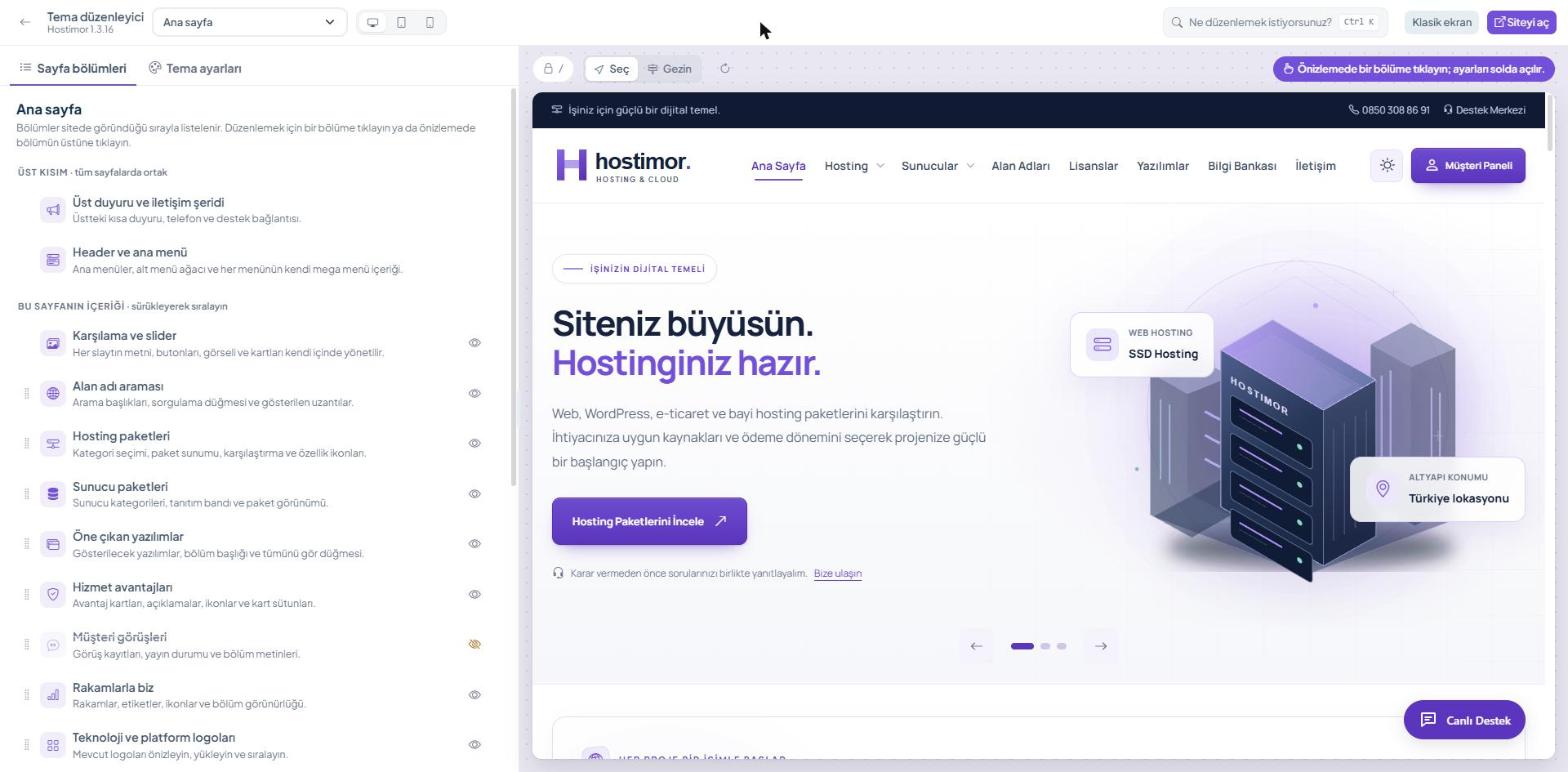
In the WISECP admin area, go to Settings → Theme/Customization → Manage Theme → Hostimor → Settings. The theme settings open inside the admin area in the classic view: tabs and the section list on the left, the section you open on the right. To see your changes live while you work, click Önizlemeli düzenleyici (Editor with preview) in the top bar. The editor with preview opens full screen and has three areas:
| Screen area | What it does |
|---|---|
| Top bar | Selection of the page being edited, desktop / tablet / mobile preview, search (Ctrl K), and the Klasik ekran (Classic screen; returns to the admin area) and Siteyi aç (Open site) buttons. If there are unpublished home page changes, the Yayınla (Publish) and Taslağı at (Discard draft) buttons also appear here. |
| Left panel | The Sayfa bölümleri (Page sections) and Tema ayarları (Theme settings) tabs. You can change the panel width by dragging its edge. |
| Live preview | The site itself. In Seç (Select) mode, clicking a section opens its settings on the left; in Gezin (Browse) mode, you move between pages using the links. |
Edit a section
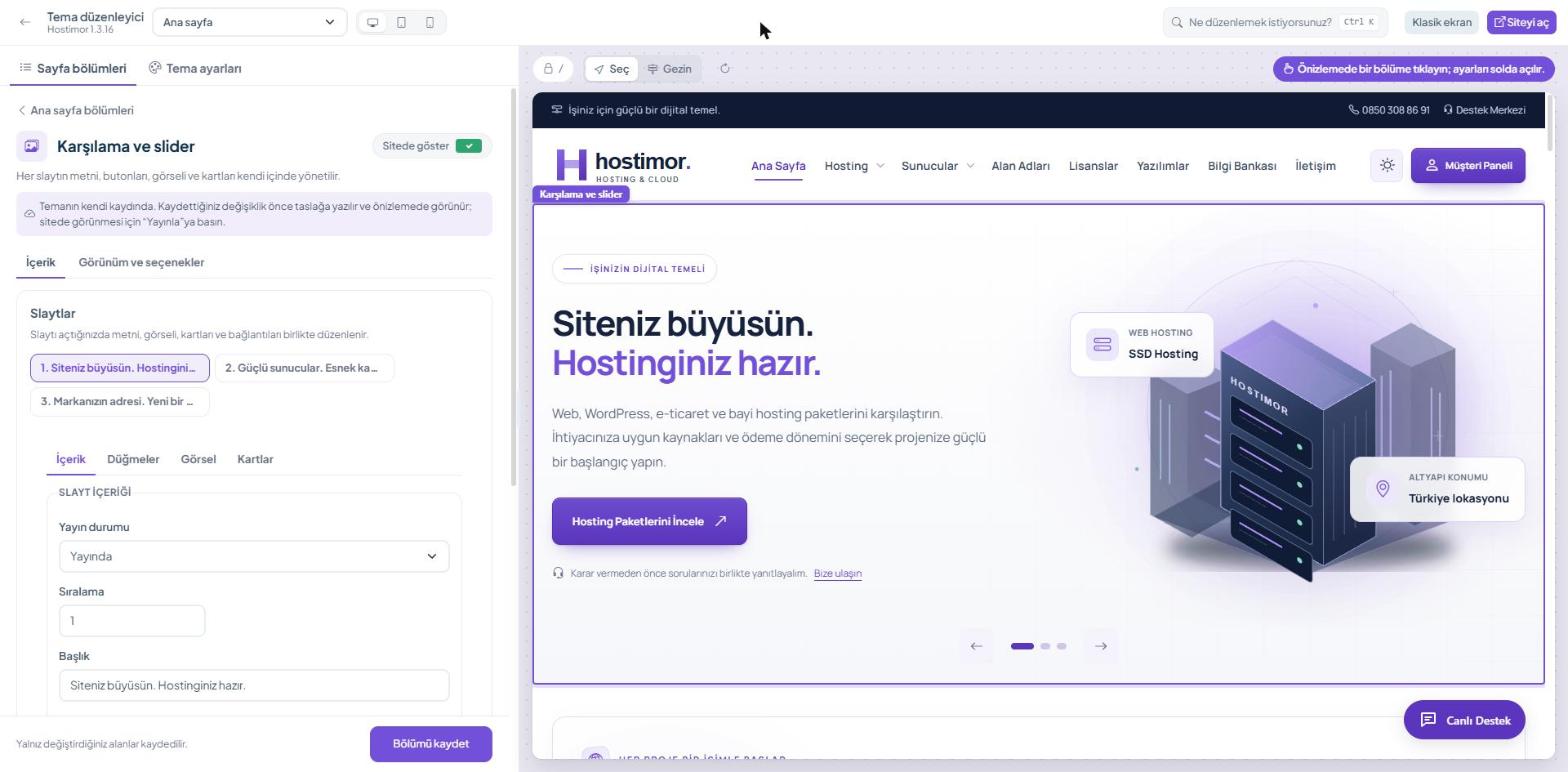
- Open the section. Click it in the list on the left, or click the section itself in the preview.
- Choose the right tab. Content and appearance are on separate tabs: İçerik (Content) and Görünüm ve seçenekler (Appearance and options). In sections with several records, such as slides, the records are split into tabs and the fields into sub-tabs such as İçerik, Düğmeler (Buttons), Görsel (Image) and Kartlar (Cards).
- Edit. As you type in a text field, the text in the preview changes instantly. In home page sections, the Sitede göster (Show on site) switch next to the title shows or hides the section.
- Save. Click Bölümü kaydet (Save section). Only the fields you changed are saved.
Choosing a page
Besides the home page, the page selector in the top bar lists 18 pages with theme content:
| Group | Pages |
|---|---|
| Sabit sayfalar (Fixed pages) | Alan adı araması (Domain search), İletişim (Contact), Kurumsal sayfalar ve sözleşmeler (Corporate pages and agreements), Bilgi bankası (Knowledge base: list, category, article, search), Lisans sorgulama (Licence lookup) |
| Ürün ve hizmet sayfaları (Product and service pages) | Hosting ve sunucu katalogları (Hosting and server catalogues), Yazılım ve lisans listesi (Software and licence list), Ürün ve yazılım detayı (Product and software detail), SMS hizmeti (SMS service) |
| Blog, haber ve referanslar (Blog, news and references) | Blog listesi ve yazısı (Blog list and post), Haber listesi ve detayı (News list and detail), Referanslar ve referans detayı (References and reference detail) |
Every page’s list has the same layout: Üst kısım (Top area; shared by all pages), Bu sayfanın bölümleri (This page’s sections; in the order they appear on the site), Alt kısım (Bottom area). The sections hold the theme content: headings, descriptions, images and icons. For example, on the Hosting ve sunucu katalogları page, Paket özellikleri (Package features) and Sık sorulan sorular (Frequently asked questions) are separate sections.
Button, form, alert and information phrases are not in the page sections but in the Genel metinler (General texts) tool. The sign-in, registration, cart and checkout screens have no theme content, so they are not in the page selector; their texts are in Genel metinler, and the sign-in screen image is under Tema ayarları → Marka ve iletişim (Theme settings → Brand and contact).
- When you move to another page in the preview, the list switches to that page too.
- Pages tied to a single record (corporate page, blog post, product detail) are previewed with the first published record on the site.
- Each page’s “Sayfa başlığı ve üst alan” (Page title and top area) section holds the page’s own title and description and the texts of the illustration in the page header. Because the illustration changes with the page type, only the texts of the illustration that page shows are listed.
- Some sections appear only in certain situations (for example, a category with no packages, or an About us page with empty content); the section list says so.
- Page types that are disabled in WISECP (Settings → General → Advanced → Product Group Activation; for example International SMS) are marked “sitede kapalı” (disabled on the site) in the selector. Your changes appear once the page is enabled.
- If you click a phrase in the preview that does not belong to a section, Genel metinler opens at that page and section.
- Client area pages are not in the editor: the client area’s design and features are developed by WISECP; in the client area, the theme only provides colour matching and the menu type (top or side menu). These settings are under Tema ayarları → Müşteri paneli (Client area).

Home page: draft and publish
The home page’s slides, section content, info cards, section order and visibility are stored in the theme’s own record. Changes you save to this content are first written to a draft and are visible only in the editor preview.
The top bar shows the notice “Ana sayfada yayınlanmamış değişiklik var” (The home page has unpublished changes): Yayınla (Publish) puts the changes live on the site; Taslağı at (Discard draft) deletes the draft and restores the published version.
You can reorder sections by dragging them or with the arrows, and hide or show them with the eye icon; these changes are also written to the draft. Page texts, the header, footer, top announcement, pop-up and theme settings, on the other hand, go live as soon as they are saved.
Theme settings tab
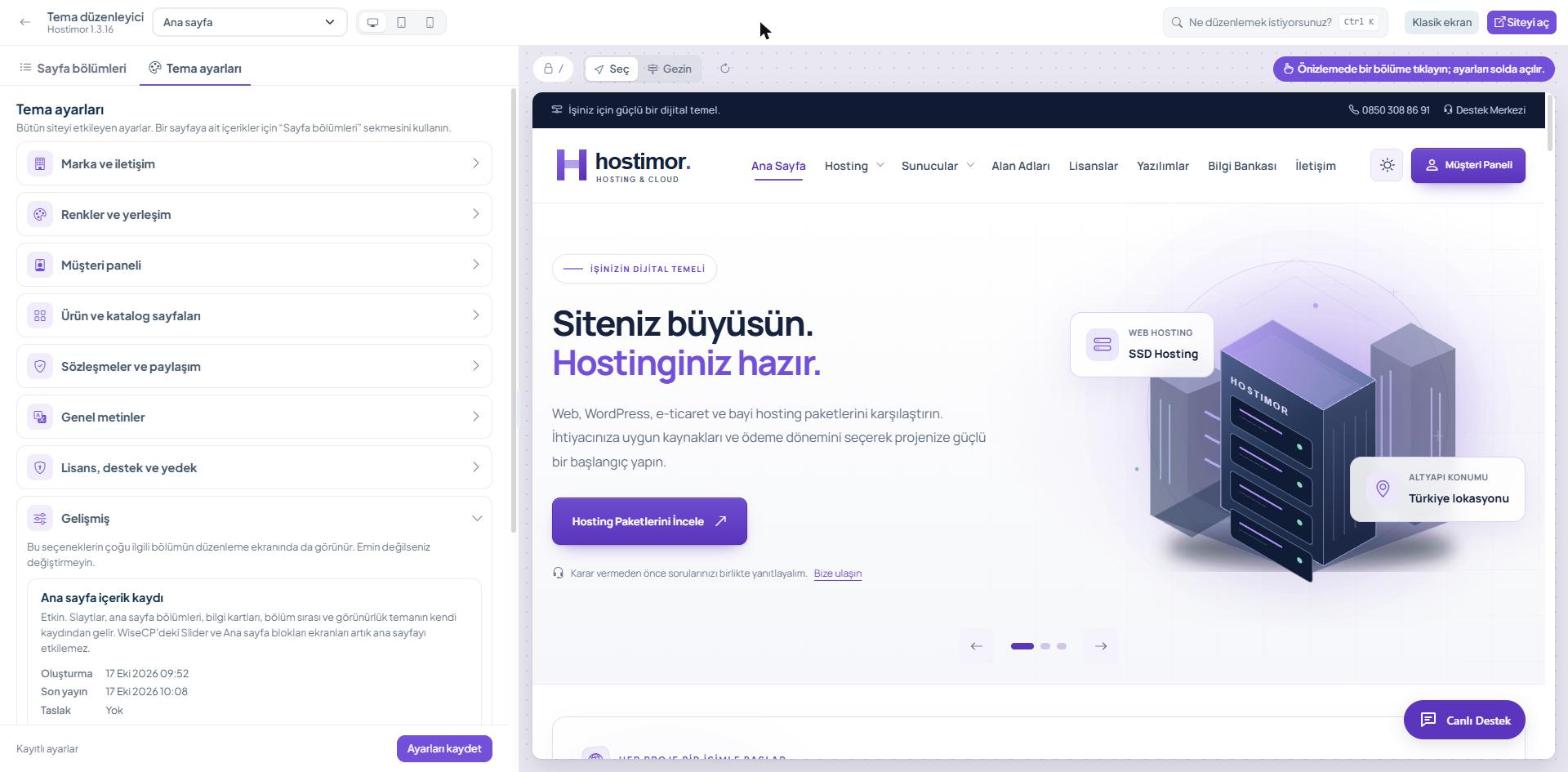
| Heading | What it changes |
|---|---|
| Marka ve iletişim (Brand and contact) | Logo and site icon, company and contact details, search engine title and description, brand name, social sharing image and sign-in screen image. |
| Renkler ve yerleşim (Colours and layout) | Ready-made colour combinations, brand colours, shared default appearance (light / dark / automatic), content width and section spacing. |
| Müşteri paneli (Client area) | Client area colours, automatic use of the site colours, and menu layout. |
| Ürün ve katalog sayfaları (Product and catalogue pages) | Package columns, product group pages and package feature icons. In 1.3.17, the column setting here affects only product category pages (2–5); home page packages are set on the Görünüm ve seçenekler (Appearance and options) tab of their own sections. |
| Sözleşmeler ve paylaşım (Agreements and sharing) | Agreement links in the footer and the pages to use for them. |
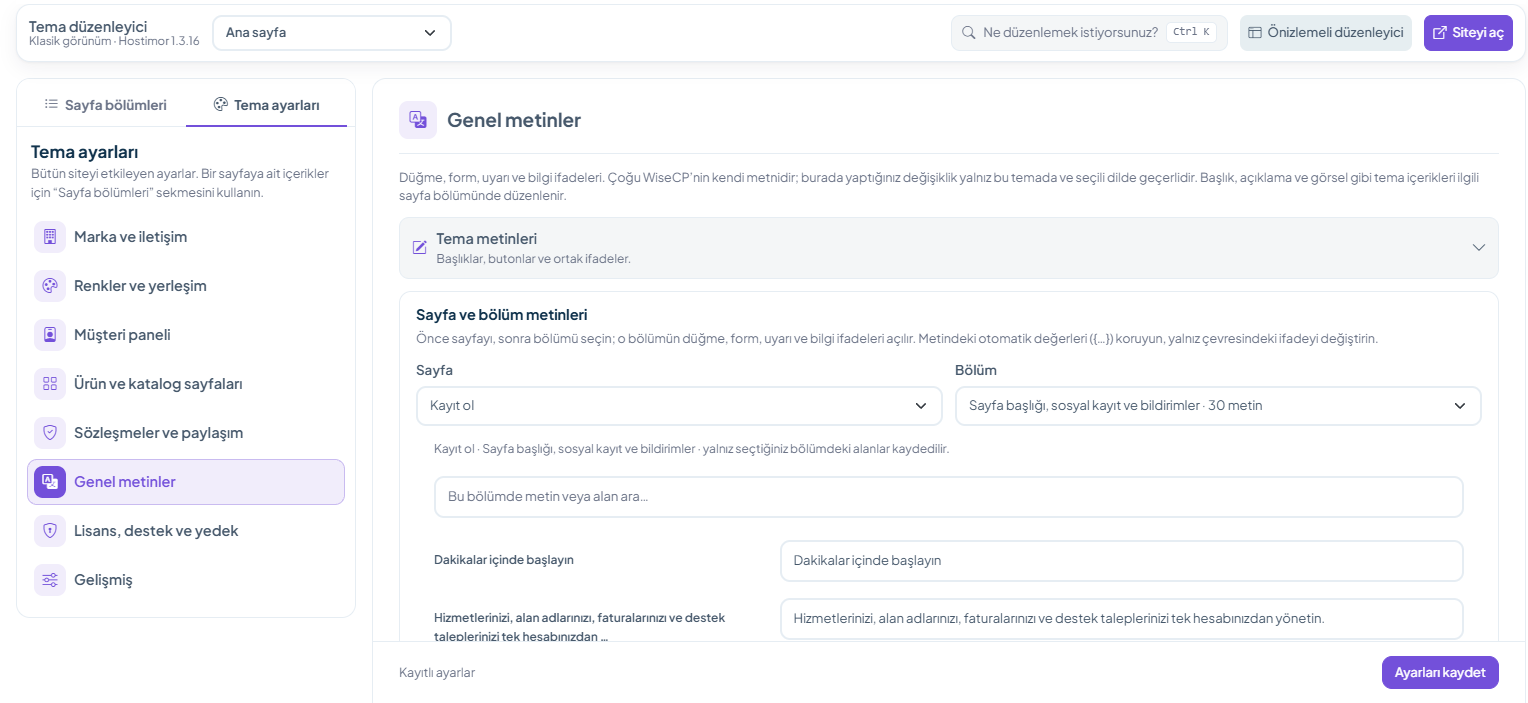
| Genel metinler (General texts) | Button, form, alert and information phrases, selected by page and section. |
| Lisans, destek ve yedek (Licence, support and backup) | Licence and support status, package check, backup of the appearance settings. |
| Gelişmiş (Advanced) | Mega menu images, section-specific layout options and the home page content record. |
Save your changes with the Ayarları kaydet (Save settings) button at the bottom. Options that belong to a section are also available on that section’s Görünüm ve seçenekler tab.
Colour combinations
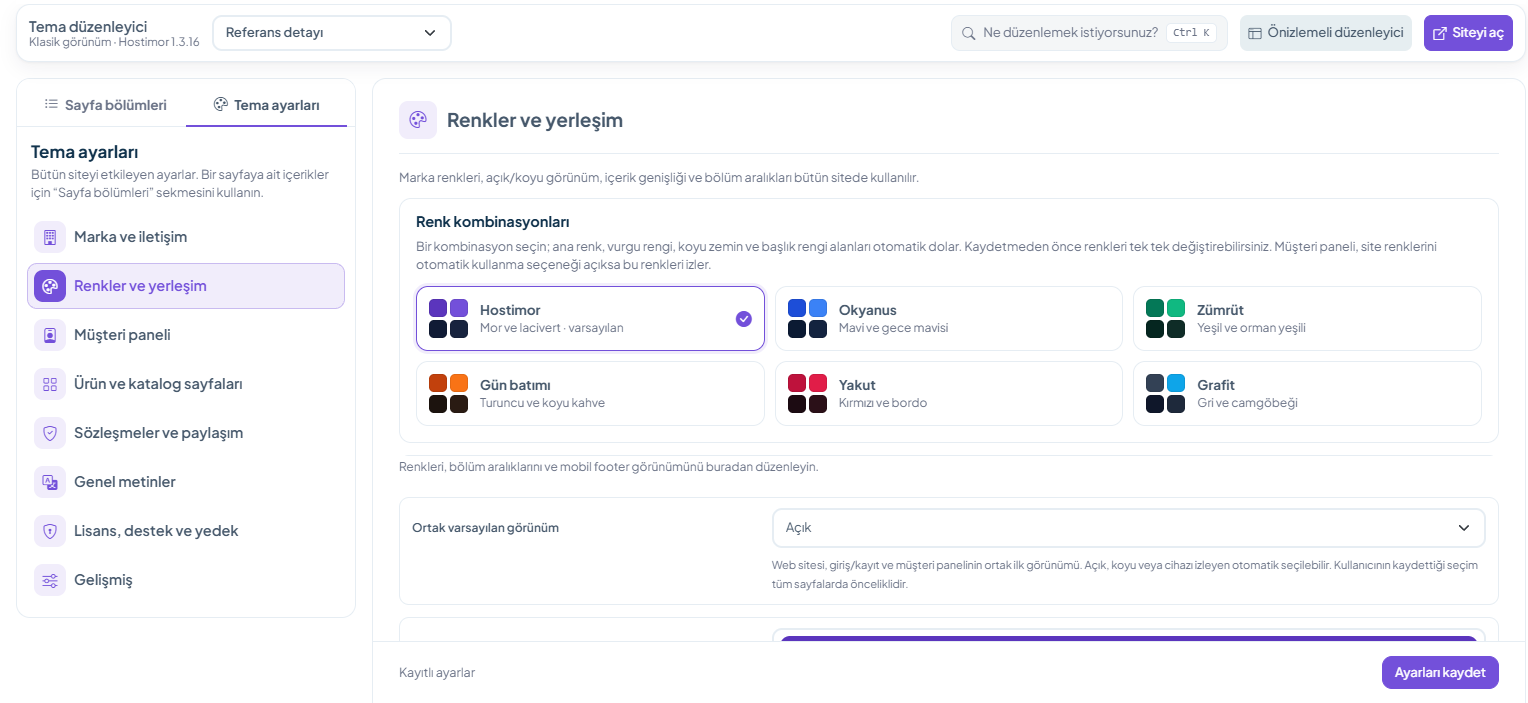
The Tema ayarları → Renkler ve yerleşim → Renk kombinasyonları card (Theme settings → Colours and layout → Colour combinations) has six ready-made combinations:
- Hostimor: purple and navy, the default
- Okyanus (Ocean): blue and midnight blue
- Zümrüt (Emerald): green and forest green
- Gün batımı (Sunset): orange and dark brown
- Yakut (Ruby): red and burgundy
- Grafit (Graphite): grey and cyan
- Choose a combination. The primary colour, accent colour, dark background and heading colour fields are filled in automatically.
- Fine-tune if you like. Before saving, you can change the colours one by one; once the fields no longer match the selected combination, the mark on the cards disappears.
- Save. To see the result on the site, click Ayarları kaydet (Save settings).
If Tema ayarları → Müşteri paneli → “Müşteri panelinde site renklerini otomatik kullan” (Theme settings → Client area → Use the site colours automatically in the client area) is on, the client area follows these colours too.
General texts
Button, form, alert and information phrases are edited in the Tema ayarları → Genel metinler (Theme settings → General texts) tool. Most of these phrases are WISECP’s own texts; your changes apply only to this theme and to the selected language.
- Choose the page. The list covers the home page, the shared areas and 36 pages; the sign-in, registration, password, cart and checkout screens are here as well.
- Choose the section. Sections are listed in their order on the page, together with the number of texts each contains. You can search for a text or field within the section.
- Edit and save. Only the fields in the selected section are saved.
- The field name always shows the original form of the phrase. For a text you have changed, the original appears below the field as “Özgün metin” (Original text).
- Keep the automatic values in the form
{…}(such as amount, duration or name) in the text; change only the wording around them. - In shared areas such as the header, footer and top announcement, the Bu alanın arayüz metinleri (Interface texts of this area) button, and in the home page list the Ana sayfanın arayüz metinleri (Home page interface texts) button, opens the relevant place directly.
- The search in the top bar also returns “arayüz metinleri” (interface texts) results.
Search
Use the Ne düzenlemek istiyorsunuz? (What do you want to edit?) box in the top bar, or Ctrl + K, to search pages, sections, settings and texts; clicking a result opens the relevant place. Example searches: logo, telefon (phone), footer, slayt (slide).
Classic and preview views
The theme settings open inside the admin area in the classic view: on the left, the tabs and the section list; on the right, the editing area of the section or theme settings heading you open. Önizlemeli düzenleyici (Editor with preview) in the top bar opens the same editor full screen with a live preview; you return with the Klasik ekran (Classic screen) button. Cards, tabs, search, theme settings, and the draft and Yayınla (Publish) step for the home page are the same in both views.
The classic view has no preview, so you cannot see the home page draft without publishing it; switch to the editor with preview to see the draft. The Siteyi aç (Open site) button opens the live version of the page you are editing in a new tab.
On tablets and phones
On narrow screens, the Düzenle (Edit) and Önizle (Preview) buttons appear in the top bar; use them to switch between the panel and the preview. When you open a section, the panel comes to the front automatically.
Licence and updates
On the licence and version card (1.3.16 and later: Tema ayarları → Lisans, destek ve yedek; Theme settings → Licence, support and backup), review the installed version, licence status, support end date, days remaining and update entitlement.
When a new version is published, follow it on the Manage Theme screen. The update is installed only when you start it; it requires an active licence and support entitlement. The end of the support period does not end the lifetime right to use the installed theme.
Update guide → · Support and renewal →
No update key is entered; updates come through the WISECP Marketplace with an active licence and support entitlement. On 1.4.0 the card is connected to the Hostimor Licence Centre and has a Re-check button.
Uploading images to the mega menu
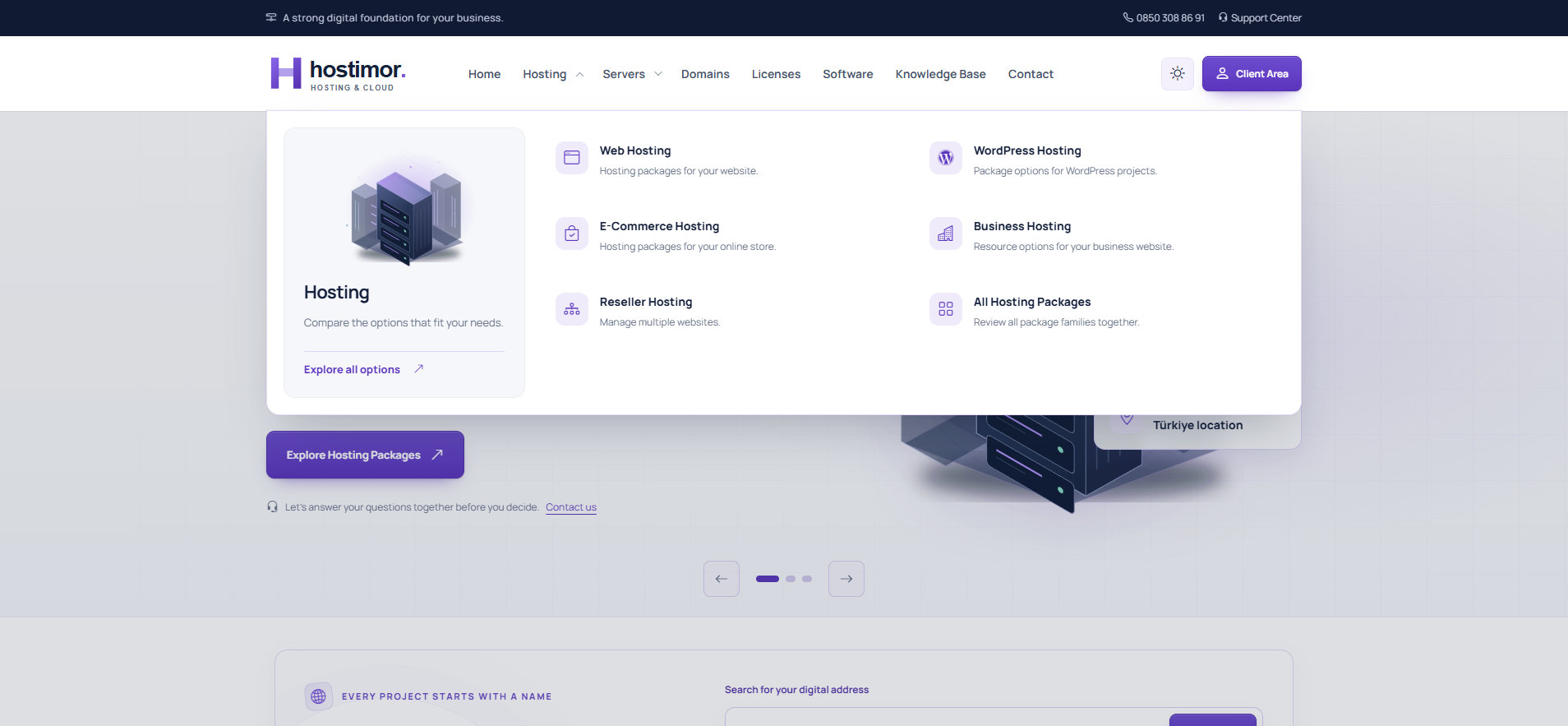
1.3.16: open the Sayfa bölümleri → Header ve ana menü → Görünüm ve seçenekler tab (Page sections → Header and main menu → Appearance and options), or the Tema ayarları → Gelişmiş → Mega menü ve görseller group (Theme settings → Advanced → Mega menu and images). 1.3.14: Manage Theme → Hostimor → Mega menü ve görseller.
Upload a PNG, JPG or WebP file for the relevant top-level menu and save. The recommended size is 560 × 340 pixels and the file limit is 2 MB. When you remove a custom image, the hosting and server menus fall back to the theme illustration.
Light, dark and automatic appearance
1.3.16: Tema ayarları → Renkler ve yerleşim → Ortak varsayılan görünüm (Theme settings → Colours and layout → Shared default appearance). 1.3.14: Hostimor Web Sitesi — Bağımsız Renkler → Ortak varsayılan görünüm (Hostimor Website — Independent Colours → Shared default appearance).
You can choose Açık (Light), Koyu (Dark) or Otomatik (Automatic). The visitor’s choice is remembered and applied consistently across the website, sign-in and client area.
Package check
1.3.16: Tema ayarları → Lisans, destek ve yedek (Theme settings → Licence, support and backup). 1.3.14: Manage Theme → Hostimor → Settings. When needed, start a new check with the Paket Kontrolünü Yenile (Refresh package check) button.
The result of the check is shown to the administrator. Visitor pages do not run a full file scan again and again. If there is a warning, check that the installation is complete and that the correct package was used, then contact support.
In the WISECP Marketplace package, four protected PHP files are encrypted by WISECP with ionCube. The package check verifies that these files exist and checks the other files against their hashes in the signed list; the manifest.json that WISECP adds to the package does not affect the check. The server must have an up-to-date ionCube Loader.