
Products and package pages
Prices, stock, categories and product features come from WISECP records; the layout of the package and software showcases is chosen in the theme editor.
Hosting and server packages
Package names, features, billing cycles, prices and stock are edited under WISECP → Products.
1.3.16: Choose the hosting categories shown on the home page in the Hosting paketleri (Hosting packages) section and the server categories in the Sunucu paketleri (Server packages) section. Package columns and the mobile package layout are under Tema ayarları → Ürün ve katalog sayfaları (Theme settings → Product and catalogue pages) and Gelişmiş (Advanced). In 1.3.17, the number and layout of home page packages are on the sections’ Görünüm ve seçenekler (Appearance and options) tab; see below for details. 1.3.14: Theme/Customization → Home, and Hostimor ayarları (Hostimor settings) → Paketler ve yönlendirmeler (Packages and redirects).
The monthly equivalent of prices and the total for the selected billing cycle are calculated from the product’s price records.
Home page package layout (1.3.17)
The settings in this section come with Hostimor 1.3.17, which was published on the WISECP Marketplace on 20 October 2026. If you are using an earlier version, update to 1.3.17 first.
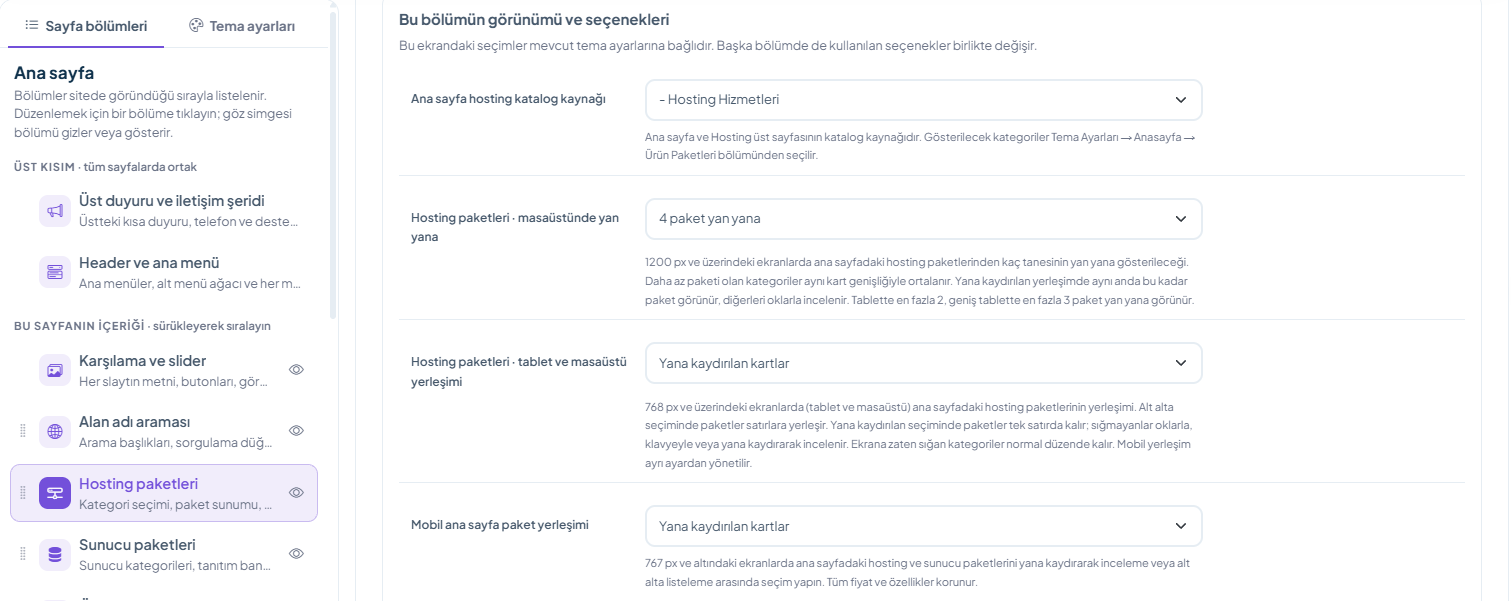
In the theme editor, open the Sayfa bölümleri → Ana sayfa → Hosting paketleri (Page sections → Home page → Hosting packages) or Sunucu paketleri (Server packages) section and switch to the Görünüm ve seçenekler (Appearance and options) tab. The two sections are set independently; for example, you can show hosting packages stacked and server packages in a row that scrolls sideways.
| Setting | Options | What changes? |
|---|---|---|
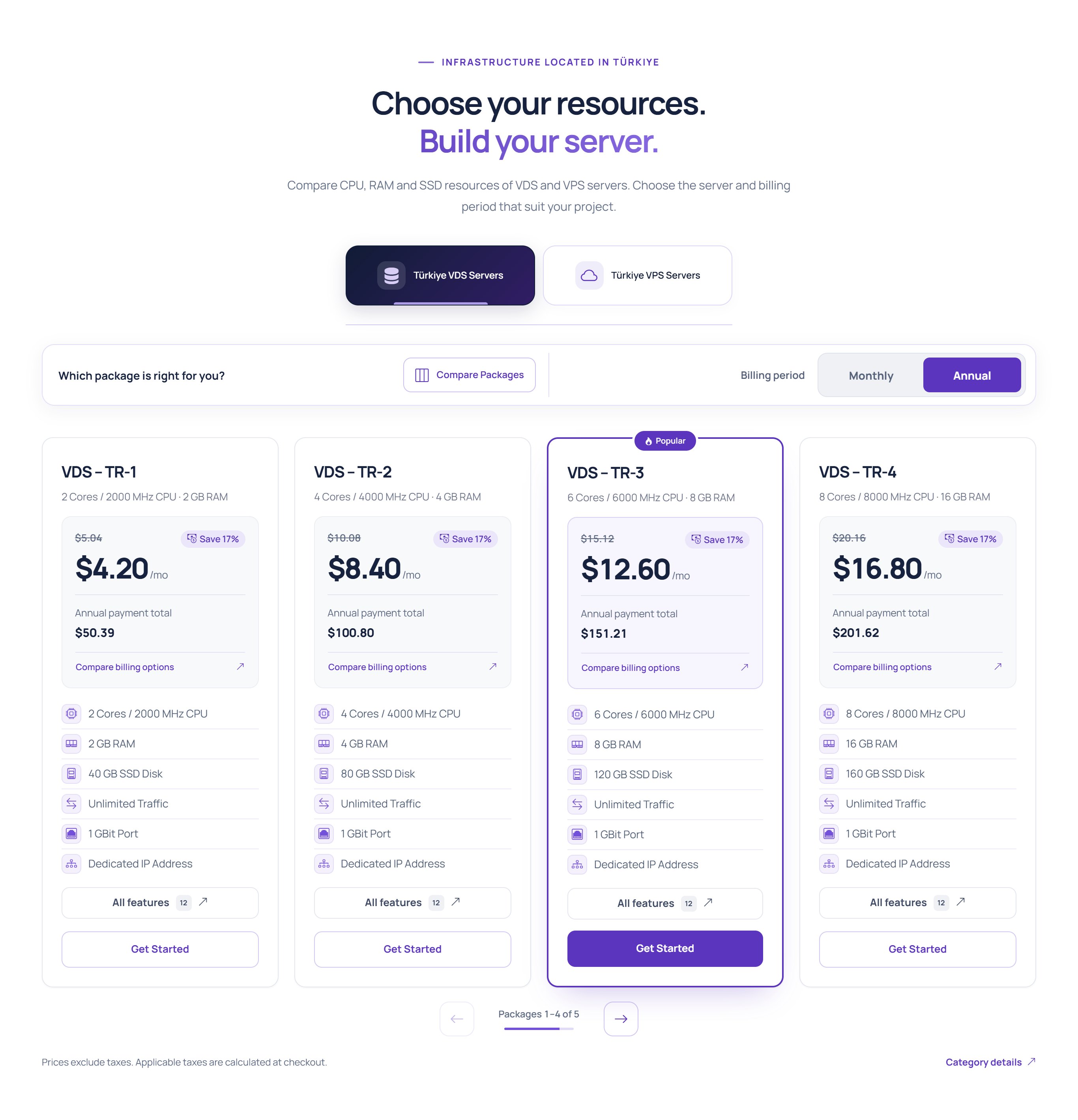
| Hosting / Sunucu paketleri · masaüstünde yan yana (Hosting / Server packages · side by side on desktop) | 2, 3, 4 or 5 packages (default 4) | The number of packages shown side by side on screens 1200 px and wider. Categories with fewer packages are centred with the same card width. Tablets show at most 2 packages side by side, wide tablets at most 3. |
| Hosting / Sunucu paketleri · tablet ve masaüstü yerleşimi (Hosting / Server packages · tablet and desktop layout) | Alt alta kartlar (Stacked cards; default) or Yana kaydırılan kartlar (Swipeable cards) | Screens 768 px and wider. With Alt alta, packages wrap into rows. With Yana kaydırılan, packages stay in a single row; visitors browse the ones that do not fit with the arrows, the keyboard or by dragging with the mouse. |
| Mobil ana sayfa paket yerleşimi (Mobile home page package layout) | Alt alta kartlar or Yana kaydırılan kartlar | Screens 767 px and narrower; one setting shared by both sections. |
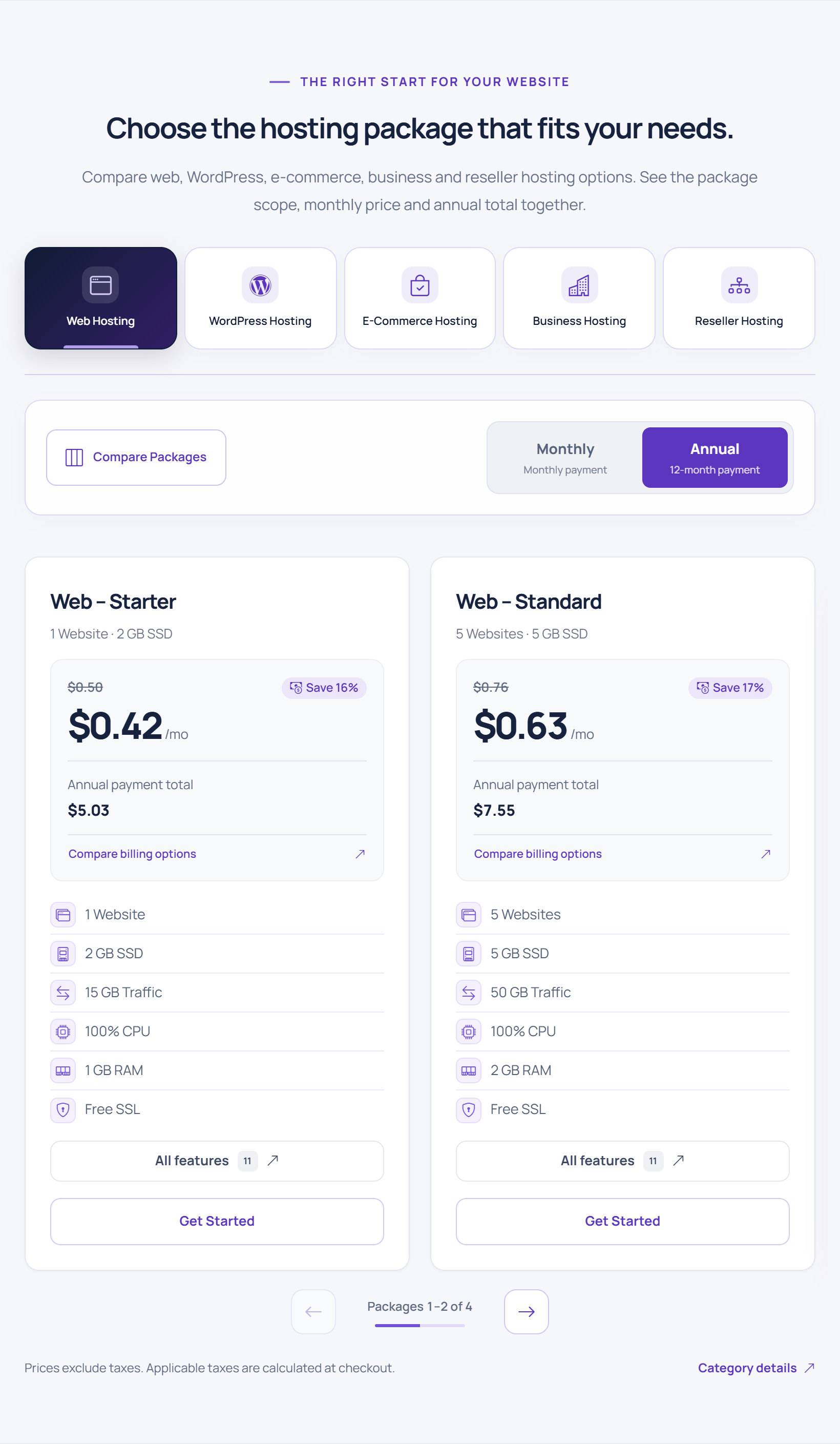
Below the swipeable row there are two arrows and a counter showing which packages are visible (“Packages 1–4 of 5”). Categories that already fit on the screen (for example, a category with 3 packages while 4 side by side is selected) keep the normal layout and show no arrows.
Product category pages: set Ürün kategori sayfalarında yan yana paket (Packages side by side on product category pages) in the Tema ayarları → Ürün ve katalog sayfaları → Paketler ve yönlendirmeler (Theme settings → Product and catalogue pages → Packages and redirects) group to 2, 3, 4 or 5 (default 4). The “Otomatik” (Automatic) option of earlier versions has been removed; a saved “Otomatik” value is applied as 4 packages. Home page packages are not affected by this setting.
Extensions in the domain search (1.3.17)
The settings in this section come with Hostimor 1.3.17, which was published on the WISECP Marketplace on 20 October 2026. If you are using an earlier version, update to 1.3.17 first.
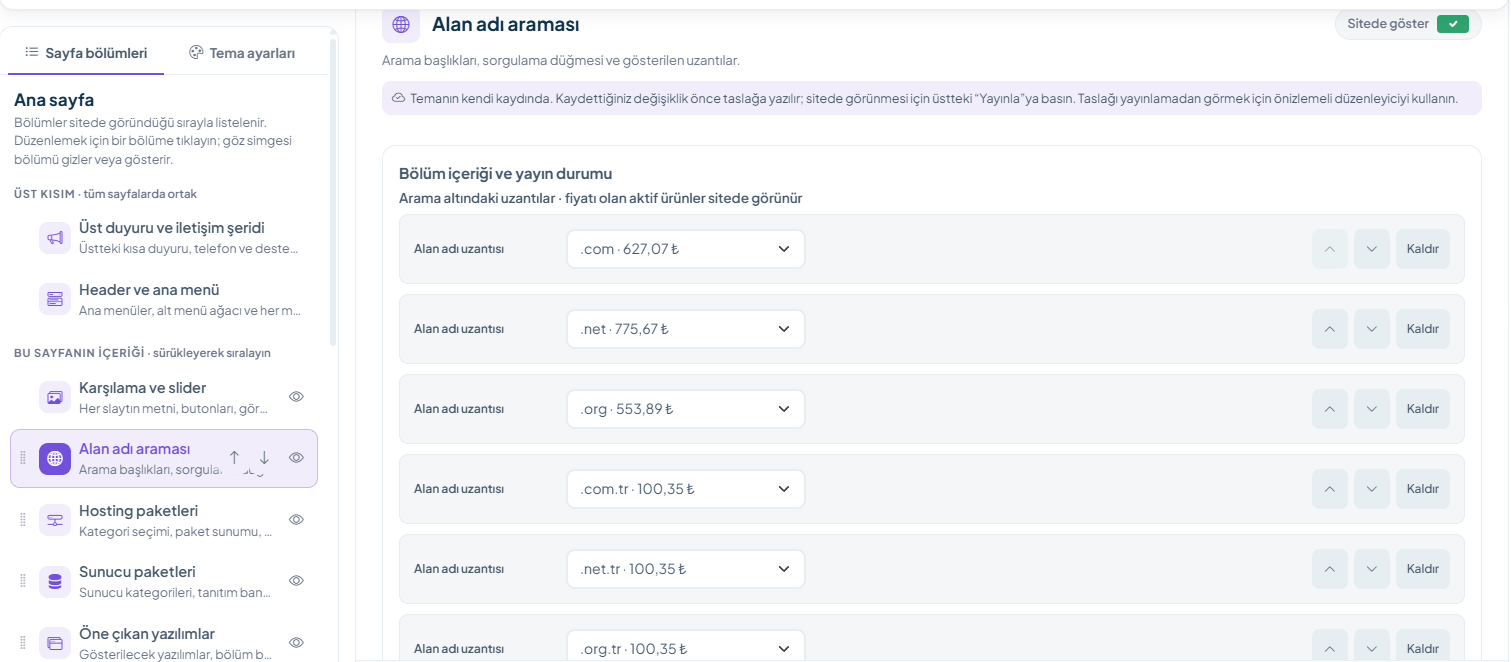
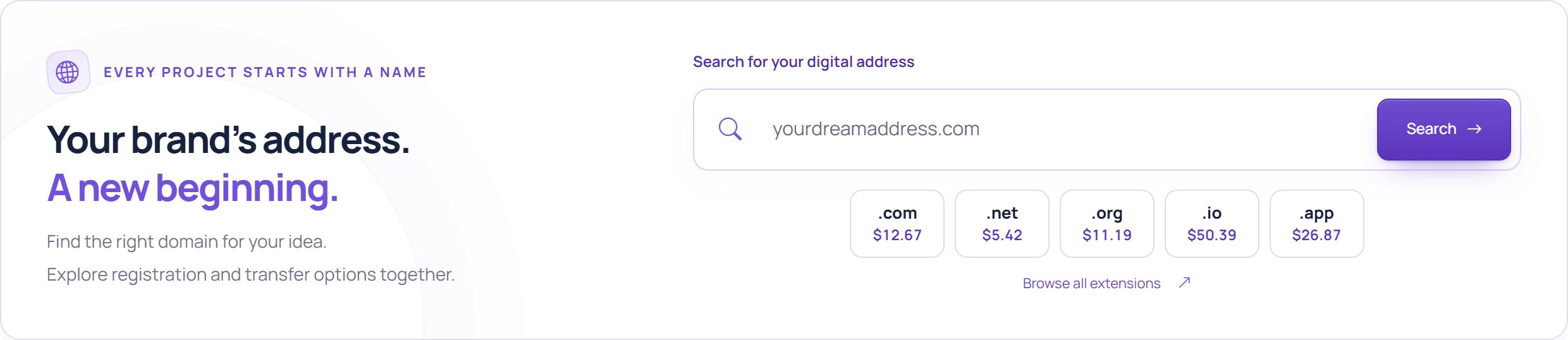
The Sayfa bölümleri → Ana sayfa → Alan adı araması (Page sections → Home page → Domain search) section contains the Arama altındaki uzantılar (Extensions below the search) list. In 1.3.17 you no longer type extensions by hand: the drop-down on each row lists the extensions enabled in WISECP together with their registration prices (e.g. “.com · 627,07 ₺”).
- Öğe ekle (Add item) adds the first extension not yet used in the list. Change the order with the arrows on the row and remove an extension with Kaldır (Remove).
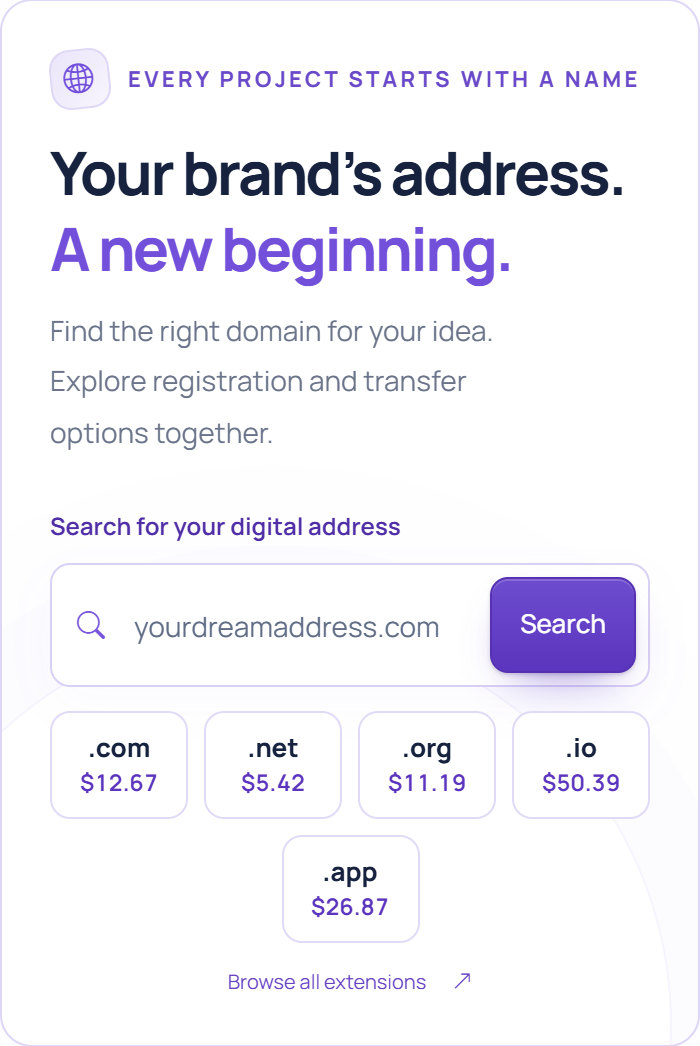
- On the site, each extension is shown with its registration price in boxes of equal size: in a single row on desktop, in balanced rows on tablets and mobiles.
- Extensions that are inactive or have no price defined are not shown on the site. Prices come from the domain price records in WISECP.
- The “Browse all extensions” link sits on its own row below the boxes.
Save the change with Bölümü kaydet (Save section). Home page content is first written to a draft; to make it appear on the site, press Yayınla (Publish) in the top bar.
Featured software (1.3.17)
The settings in this section come with Hostimor 1.3.17, which was published on the WISECP Marketplace on 20 October 2026. If you are using an earlier version, update to 1.3.17 first.
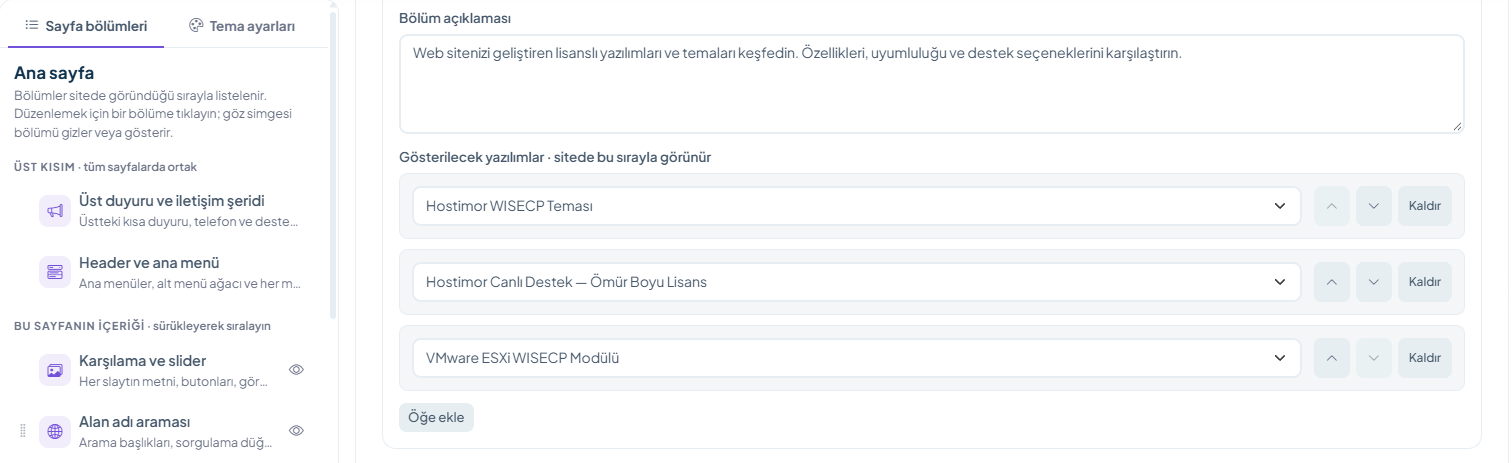
In the Sayfa bölümleri → Ana sayfa → Öne çıkan yazılımlar (Page sections → Home page → Featured software) section, the İçerik (Content) tab has a Gösterilecek yazılımlar (Software to show) list that contains only the software products in WISECP, listed by name; licence and service products are not listed. Inactive products are marked “pasif, sitede görünmez” (inactive, not shown on the site). Products appear on the site in the order of the list: add products with Öğe ekle (Add item) and sort them with the arrows.
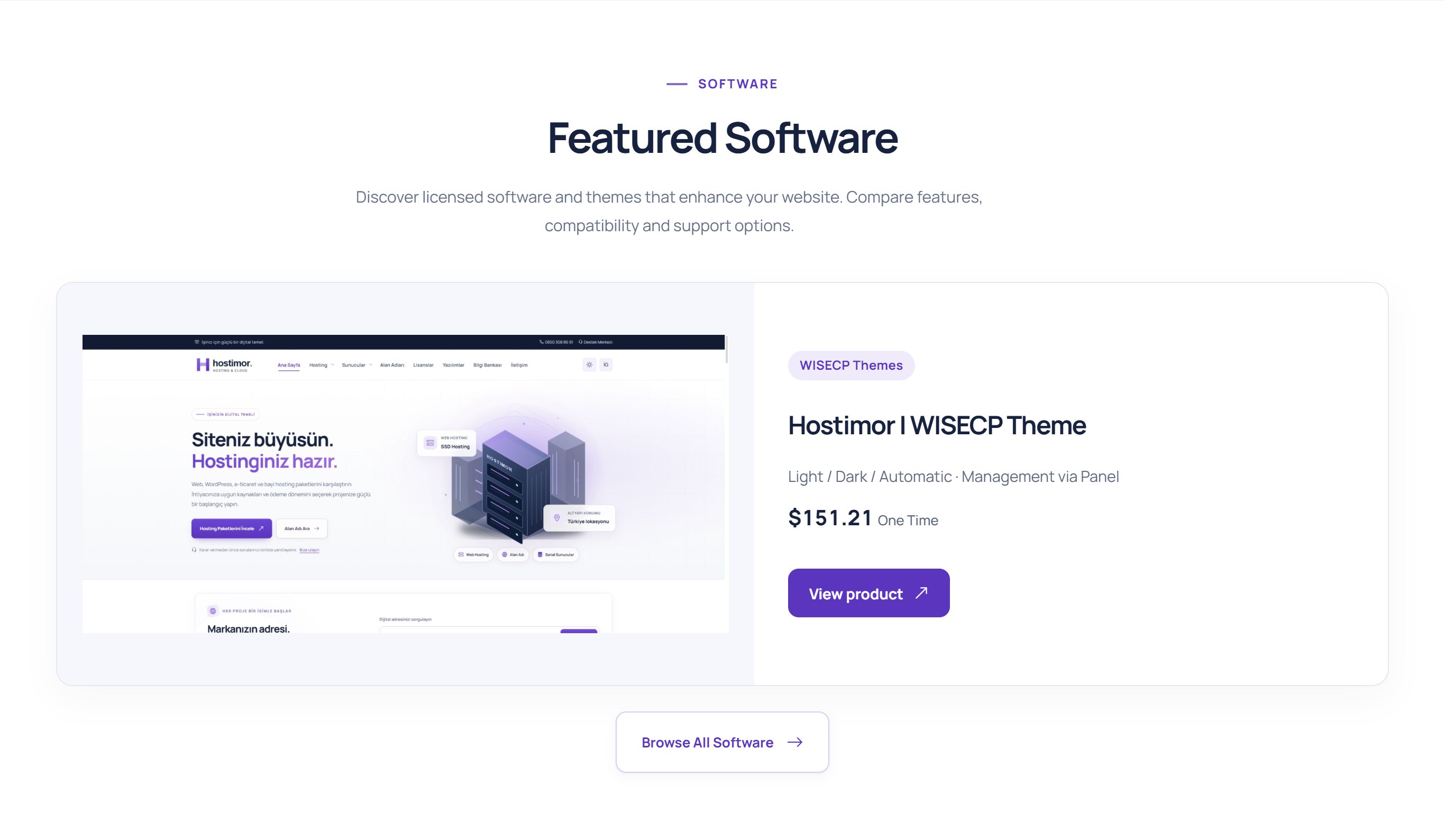
The cards show the product image, category label, product name, the short features from the product record and the price. The price is calculated from the product’s first billing cycle: for monthly or yearly cycles the monthly equivalent is shown with “/mo”, and one-time products show “One-time”.
| Setting | Options | What changes? |
|---|---|---|
| Öne çıkan yazılımlar · masaüstünde yan yana (Featured software · side by side on desktop) | 1 yazılım · geniş vitrin kartı (1 product · wide showcase card), 2, 3 (default) or 4 | The number of products shown side by side on screens 992 px and wider. Tablets show 2 products side by side, phones 1. When 1 is selected, each product is shown as a wide showcase card: on tablets and desktops the image is on the left and the details on the right. |
| Öne çıkan yazılımlar · yerleşim (Featured software · layout) | Alt alta kartlar (Stacked cards; default) or Yana kaydırılan kartlar (Swipeable cards) | With Yana kaydırılan, products stay in a single row on every screen; visitors browse the ones that do not fit with the arrows, the keyboard or by dragging with the mouse. If the products fit on the screen, the normal layout is used. |
When only one product is selected, the wide showcase card is used regardless of the column setting. The product image is fitted into the card area whatever its aspect ratio, so portrait screenshots stay small. For the best result, use a landscape (about 16:9) product image.
Save the change with Bölümü kaydet (Save section). Home page content is first written to a draft; to make it appear on the site, press Yayınla (Publish) in the top bar.


Software and special product groups
1.3.16: In the page selector, open the Hosting ve sunucu katalogları (Hosting and server catalogues) or Yazılım ve lisans listesi (Software and licence list) page. The category title, description and header image are under Kategori içerikleri (Category content); the product description and gallery are under Ürün sunumları (Product presentations). The category view is in the Tema ayarları → Ürün ve katalog sayfaları → Ürün grubu sayfaları (Theme settings → Product and catalogue pages → Product group pages) group.
1.3.14: Manage the page title, description, category, products and FAQ in the relevant record under Products → Product Group List; for the appearance, use the Tema ayarları → Ürün grubu sayfaları group.
If a product does not appear
- Are the product and its group active?
- Is the product in the right group or category?
- Are the product’s sale/visibility and stock settings correct?
- Is there a price and billing cycle record?
- Does the menu link point to the right group page?
Having products in a group does not mean that every product is available for sale to visitors. Check the product statuses in the admin area.